The post Difference between Gmail and MS Outlook appeared first on MailsSoftware.
]]>If you are confused between Gmail and Outlook and searching, what is the difference between Gmail and Outlook? Pros and Cons of Gmail VS Outlook? Which is the best between these two? Which will provide you with the best experience? Then in this blog, you will get the answer to all your queries.
Bonus – You will also get to know which one is better for business
So let’s get started
What is Gmail?

Gmail is a free email service provider of Google, it is a web-based email service. In this, you will send and receive emails, make contacts, calendar, and make notes, add tasks. You can assess the Gmail account from the web or by third-party App. Which configured mails through POP and IMAP servers.
Every account adds to Gmail has an extension of @gmail.com, you can also schedule a mail-in Gmail. Since it is a free email service you have only been provided with a space of 15GB.
All emails receive and sent through Gmail are stored in Google servers. So Google can access your private mail which is the biggest drawback of Gmail. You can also get a backup of all your emails from Google. But you can’t blame Google in case your mail data is deleted from the server because it is a free service.
That is why all big enterprises use their custom mail account and server for communication with their clients and customers.
What is Outlook?
Outlook is a personal information manager by MS Office, it is a desktop-based email application in which you can configure any email account. Outlook is included in the MS Office suite, apart from sending and receiving emails you can also save contacts, make tasks, plan to-do lists, and see the calendar.
It must be noted that Outlook is a desktop-based email client, it provides the service of configuring any email account in it. You can also use your Gmail account in Outlook. Now you may be thinking, why should I configure my Gmail account in Outlook? Well, you will get a couple of benefits if you do that –
1 – A copy of all your mail data will save in your system in the form of OST and PST files. so you can easily take backup.
2 – You will access your email account offline, which means you can see previously downloaded emails.
3 – You can write a new mail and save it to default without Outlook.
(It should be noted that Microsoft also provide free email address which is called @Outlook.com and Hotmail.com)
Top Difference between Gmail and MS Outlook
Now you have understood the meaning of Outlook and Gmail, their working and benefit. let’s discuss the difference between these two – 
Email client Vs Email service provider
The first difference is Gmail is an email service provider, it provides the service of sending and receiving emails. On the other hand, MS Outlook is an email client that consumes the services of all email service providers.
In simple words, in Gmail, only accounts that have the @gmail.com extension at last in their account name can be configured. But in Outlook, you can configure your email account with any email service provider like Yahoo Mail, AOL Mail, Zoho Mail, Hot Mail, etc.
Outlook folder Vs Gmail labels
In Outlook you can add multiple folders in an email account and in this new folder, your can group similar emails. For eg, you can add a new folder named “important file” and now you can transfer all your important emails to this folder.
In Gmail, the system is different instead of grouping similar emails into a new folder Gmail stored them in labels. You can also apply a label filter to a particular email address and then every mail received from that email address will go to the applied label.
Outlook Flag Vs Gmail Star
In Gmail, you can bifurcate a message that is important by applying the star icon. But in Outlook, you can bifurcate a mail by assigning a flag to it. Also, there are many colors available to flag a message and you can choose any according to the importance of the message.
Moving Spam Emails
In Outlook you have to manually transfer all spam emails coming from an email account to the junk email folder. But in Gmail, you can apply the label filter to the email account that sends spam emails, and then all emails from that particular account will automatically move to the trash label.
Composing new Mails
The system of composing new mail is totally different in Outlook and Gmail. In Outlook a new window will open when you click on a new mail button to compose a new email. But in Gmail, a pop-up will appear on the existing window when you click on the compose button.
This means you can see any emails message and all Gmail features when you are composing a new message in Gmail. But in Outlook, that not the case because a new window will open if you click on the new Email button to compose a new email message.
Pons and Cons of Gmail and Outlook
There is no such Pons and Cons of Gmail and Outlook, both have their own feature, and you can use any of them as per your requirement. But there is a benefit of using Outlook, you can get extra security for your data because all your mail data will save in your system. Outlook is paid utility, so there is no problem with space in Outlook. But you will get a limited space of 15 GB in G-mail.
The case when Outlook is best to use
If you have an email account, whose data is important to you then you should use that account in Outlook. Like your professional email account, the Account that you use to send important messages. An email account that you use to do money transactions.
Conclusion
I hope that through this informative blog you have understood the meaning of MS Outlook and Google Gmail. Basic differences between these two, pons and cons and also the cases when Outlook should be used instead of Gmail. Still, if you have any doughty in your mind feel free to contact us. We will be very happy to help you.
The post Difference between Gmail and MS Outlook appeared first on MailsSoftware.
]]>The post Download Google Mailbox (Gmail) data by using Google Takeout appeared first on MailsSoftware.
]]>Gmail is a free web-based email service developed by Google. It allows users to send and receive or manage emails in the presence of internet connectivity.
Requirement for Using Gmail
The user needs Login ID (User Name) and Login Password to use the Gmail account. Open www.gmail.com and provide the mandatory credential.
What is the Google Takeout?
Google Takeout is a tool that is normally used to download the data of other Google services. Google Takeout transfers data of other Google services like Gmail, Google Calendar, Hangout, Maps, YouTube, Google Photos, etc to keep their backup archive.
Here, we will discuss how to download Gmail data using Google Takeout.
How to extract Gmail data using Google Takeout?
Users may pull out Google takeout Gmail archive data by following these steps:
- Log in to the Google Takeout account using the Google username and password.
- A page will open where you find an option to CREATE A NEW ARCHIVE. Under this, you will find two options-
- Select data to include
- Customize archive format.
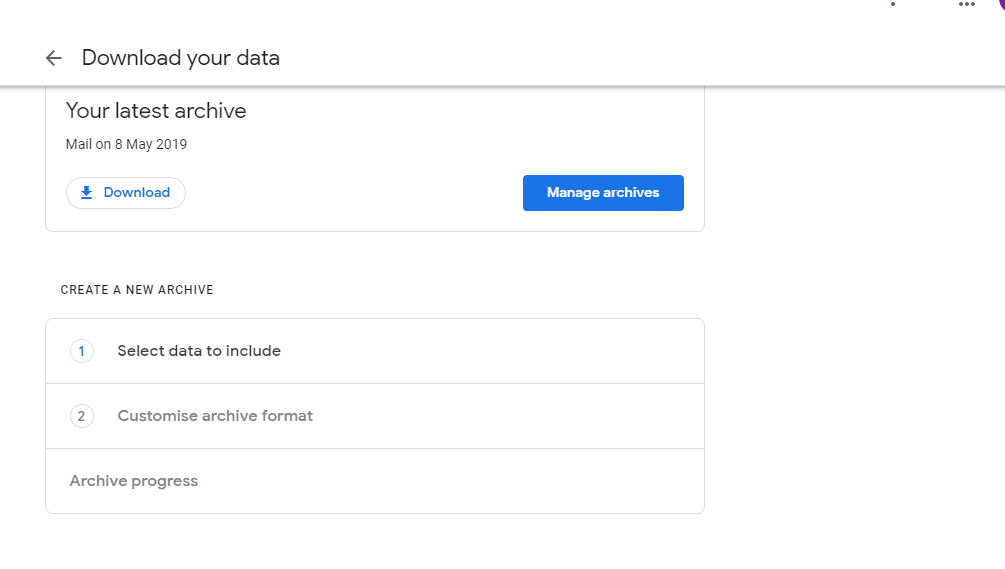
- Under select data to include, you need to deselect all the Google services and select Mail. If you choose the Mail service to download its data, you will find two options for downloading data-
- MBOX format
- All mail data included
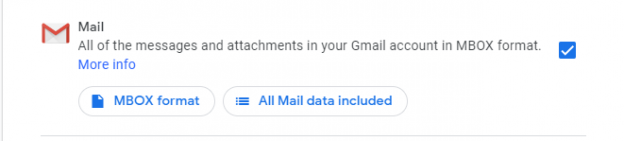
- When you click on MBOX format you will get a message saying that the data will get exported into MBOX format.
- If you choose the second option all mail data included, then it will provide you an option to select or deselect the folders of the emails. And click on Next Step.
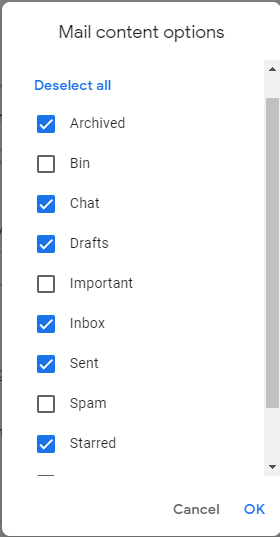
- You will be directed under the second option. Under Customize archive format, you need to choose the delivery method, export type, file type, and archive size.
- Under the Delivery method, you need to choose “send the download link via email” to get the download link in your mail.
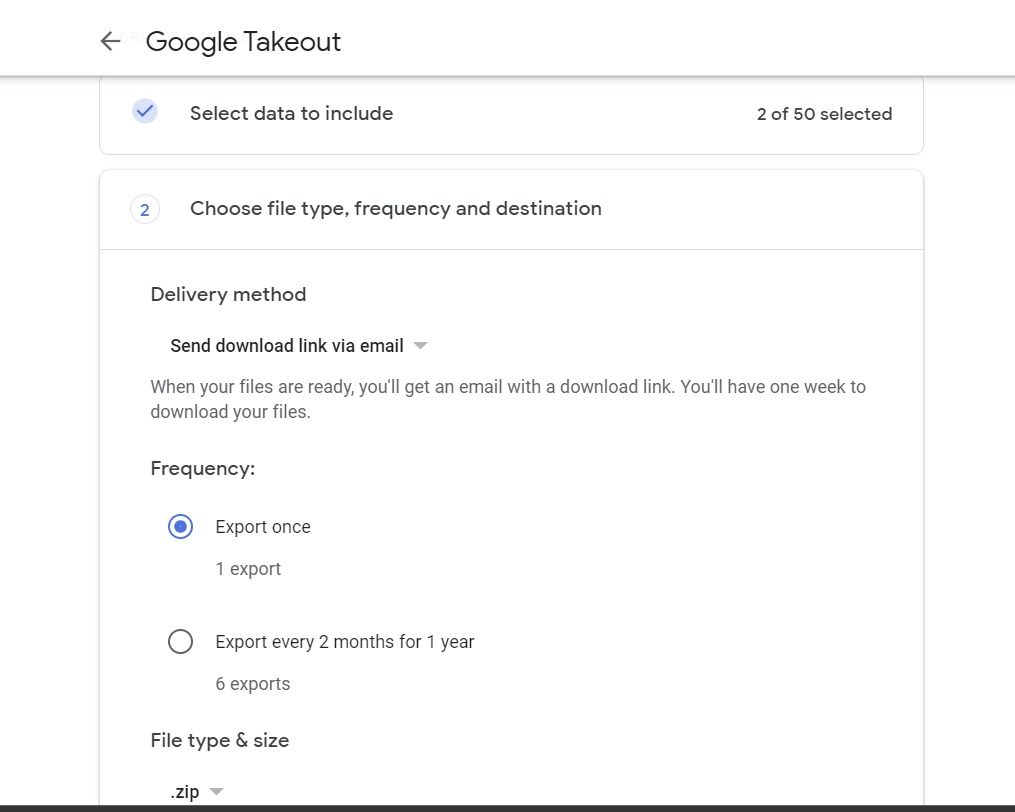
- Under Export type, you need to choose whether you want a one-time archive or want to schedule exports every 2 months for a year.
- You can also choose the File type either in .zip or .tgz form.
- Also can choose the archive sizes 1GB, 2GB, 4GB, 10GB, and 50 GB.
- Now, click on Create Archive.
- Then you will get an email notification saying Archive of Google data requested.
- Once the Google takeout archive is ready you will get another email providing you the archive email data and the options to download and manage the archive.
- Once you click on the Download button through your mail then it directs you to the Google takeout account to download the data. You can also directly go to Google Takeout account and download data from there, click the Download button adjacent to the newly created archive.
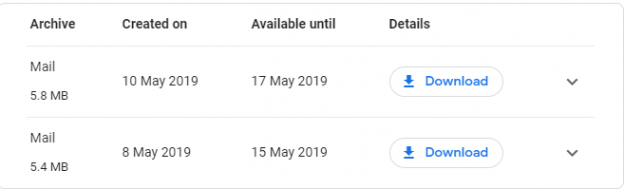
You will get data in zip form in MBOX format to your desired download location. You just need to extract the zip data.
Conclusion
If you want to import Google takeout data (downloaded MBOX file) to Outlook, then you need to convert the MBOX to PST. Free download the demo version of the MailsSoftware MBOX to PST Converter tool to export multiple MBOX files to Outlook PST format along with complete emails and attachments.
The post Download Google Mailbox (Gmail) data by using Google Takeout appeared first on MailsSoftware.
]]>