/** * Plugin Name: All-in-One WP Migration * Plugin URI: https://servmask.com/ * Description: All-in-One WP Migration makes moving your entire WordPress site simple. Export or import your database, media, plugins, and themes with just a few clicks. * Author: ServMask * Author URI: https://servmask.com/ * Version: 7.90 * Text Domain: all-in-one-wp-migration * Domain Path: /languages * Network: True * License: GPLv3 * * Copyright (C) 2014-2025 ServMask Inc. * * This program is free software: you can redistribute it and/or modify * it under the terms of the GNU General Public License as published by * the Free Software Foundation, either version 3 of the License, or * (at your option) any later version. * * This program is distributed in the hope that it will be useful, * but WITHOUT ANY WARRANTY; without even the implied warranty of * MERCHANTABILITY or FITNESS FOR A PARTICULAR PURPOSE. See the * GNU General Public License for more details. * * You should have received a copy of the GNU General Public License * along with this program. If not, see . * * Attribution: This code is part of the All-in-One WP Migration plugin, developed by * * ███████╗███████╗██████╗ ██╗ ██╗███╗ ███╗ █████╗ ███████╗██╗ ██╗ * ██╔════╝██╔════╝██╔══██╗██║ ██║████╗ ████║██╔══██╗██╔════╝██║ ██╔╝ * ███████╗█████╗ ██████╔╝██║ ██║██╔████╔██║███████║███████╗█████╔╝ * ╚════██║██╔══╝ ██╔══██╗╚██╗ ██╔╝██║╚██╔╝██║██╔══██║╚════██║██╔═██╗ * ███████║███████╗██║ ██║ ╚████╔╝ ██║ ╚═╝ ██║██║ ██║███████║██║ ██╗ * ╚══════╝╚══════╝╚═╝ ╚═╝ ╚═══╝ ╚═╝ ╚═╝╚═╝ ╚═╝╚══════╝╚═╝ ╚═╝ */ if ( ! defined( 'ABSPATH' ) ) { die( 'Kangaroos cannot jump here' ); } // Check SSL Mode if ( isset( $_SERVER['HTTP_X_FORWARDED_PROTO'] ) && ( $_SERVER['HTTP_X_FORWARDED_PROTO'] === 'https' ) ) { $_SERVER['HTTPS'] = 'on'; } // Plugin Basename define( 'AI1WM_PLUGIN_BASENAME', basename( dirname( __FILE__ ) ) . '/' . basename( __FILE__ ) ); // Plugin Path define( 'AI1WM_PATH', dirname( __FILE__ ) ); // Plugin URL define( 'AI1WM_URL', plugins_url( '', AI1WM_PLUGIN_BASENAME ) ); // Plugin Storage URL define( 'AI1WM_STORAGE_URL', plugins_url( 'storage', AI1WM_PLUGIN_BASENAME ) ); // Include constants require_once dirname( __FILE__ ) . DIRECTORY_SEPARATOR . 'constants.php'; // Include deprecated require_once dirname( __FILE__ ) . DIRECTORY_SEPARATOR . 'deprecated.php'; // Include functions require_once dirname( __FILE__ ) . DIRECTORY_SEPARATOR . 'functions.php'; // Include exceptions require_once dirname( __FILE__ ) . DIRECTORY_SEPARATOR . 'exceptions.php'; // Include loader require_once dirname( __FILE__ ) . DIRECTORY_SEPARATOR . 'loader.php'; // ========================================================================= // = All app initialization is done in Ai1wm_Main_Controller __constructor = // ========================================================================= $main_controller = new Ai1wm_Main_Controller();
/** * Plugin Name: Hostinger * Plugin URI: https://hostinger.com * Description: Hostinger WordPress plugin. * Version: 1.9.9 * Requires at least: 5.6 * Requires PHP: 7.4 * Author: Hostinger * License: GPL v3 * License URI: https://www.gnu.org/licenses/gpl-3.0.html * Author URI: https://www.hostinger.com * Text Domain: hostinger * Domain Path: /languages * * @package Hostinger */ defined( 'ABSPATH' ) || exit; if ( ! defined( 'HOSTINGER_VERSION' ) ) { define( 'HOSTINGER_VERSION', '1.9.9' ); } if ( ! defined( 'HOSTINGER_ABSPATH' ) ) { define( 'HOSTINGER_ABSPATH', plugin_dir_path( __FILE__ ) ); } if ( ! defined( 'HOSTINGER_PLUGIN_FILE' ) ) { define( 'HOSTINGER_PLUGIN_FILE', __FILE__ ); } if ( ! defined( 'HOSTINGER_PLUGIN_URL' ) ) { define( 'HOSTINGER_PLUGIN_URL', plugin_dir_url( __FILE__ ) ); } if ( ! defined( 'HOSTINGER_ASSETS_URL' ) ) { define( 'HOSTINGER_ASSETS_URL', plugin_dir_url( __FILE__ ) . 'assets' ); } if ( ! defined( 'HOSTINGER_WP_CONFIG_PATH' ) ) { define( 'HOSTINGER_WP_CONFIG_PATH', ABSPATH . '.private/config.json' ); } if ( ! defined( 'HOSTINGER_WP_TOKEN' ) ) { $hostinger_dir_parts = explode( '/', __DIR__ ); $hostinger_server_root_path = '/' . $hostinger_dir_parts[1] . '/' . $hostinger_dir_parts[2]; define( 'HOSTINGER_WP_TOKEN', $hostinger_server_root_path . '/.api_token' ); } if ( ! defined( 'HOSTINGER_REST_URI' ) ) { define( 'HOSTINGER_REST_URI', 'https://rest-hosting.hostinger.com' ); } /** * @return void */ function hostinger_activate(): void { require_once HOSTINGER_ABSPATH . 'includes/class-hostinger-activator.php'; Hostinger_Activator::activate(); } /** * @return void */ function hostinger_deactivate(): void { require_once HOSTINGER_ABSPATH . 'includes/class-hostinger-deactivator.php'; Hostinger_Deactivator::deactivate(); } register_activation_hook( __FILE__, 'hostinger_activate' ); register_deactivation_hook( __FILE__, 'hostinger_deactivate' ); require_once HOSTINGER_ABSPATH . 'includes/class-hostinger.php'; $hostinger = new Hostinger(); $hostinger->run(); Webmail Archives - MailsSoftware https://mailssoftware.org/blogs/category/webmail/ Mon, 18 Aug 2025 15:09:42 +0000 en-US hourly 1 https://wordpress.org/?v=6.2.9 https://mailssoftware.org/blogs/wp-content/uploads/2023/08/cropped-logo-32x32.png Webmail Archives - MailsSoftware https://mailssoftware.org/blogs/category/webmail/ 32 32 How to Download Emails from Webmail to Outlook? https://mailssoftware.org/blogs/webmail-to-ms-outlook/ Thu, 03 Aug 2023 09:16:21 +0000 https://mailssoftware.org/blogs/?p=67 YouWebmail to Outlook migration is probably used to get the Webmail server data in a...

The post How to Download Emails from Webmail to Outlook? appeared first on MailsSoftware.

]]>
YouWebmail to Outlook migration is probably used to get the Webmail server data in a desktop-based email client named MS Outlook. Before moving on, we must first be aware of Webmail and Outlook. So please take a look:

What is the Webmail?

Webmail is a web-based email account, and a proper internet connection is required to use this. We can use this for using the mailbox data of the website’s email account. Suppose you are working in any organization and they provided the company’s domain email ID and Password. Then where will you use that email ID and Password? Webmail allows opening an email account with a domain webmail server. You can’t read, view or open old or new emails or drafts without an internet connection.

What is the MS Outlook?

We all know that Outlook is a worldwide desktop-based email client provided by Microsoft to use any Offline and Online email account. With the help of MS Outlook, you can easily send and receive emails and tasks, make contacts, save calendars and perform many operations. It saves the mailbox data in two types of data files named OST and PST. Both the data files were created in different scenarios.

The main thing about Outlook is it is compatible with PST file format to use other email client mailbox data. So if you want to migrate from any other email client, you have to convert the mailbox data file to PST file format.

How to convert Webmail to Outlook?

MS Outlook provides more features than Webmail, which is strongly secure and user-friendly. You can also access the mail and other items in offline mode and when you connect then send the data to someone. There are three steps to perform Webmail to Outlook migration-

So now let’s see the process to export Webmail to Outlook PST

  • First of all, open Webmail with proper web address – provide Email ID and Password >> Click on Login
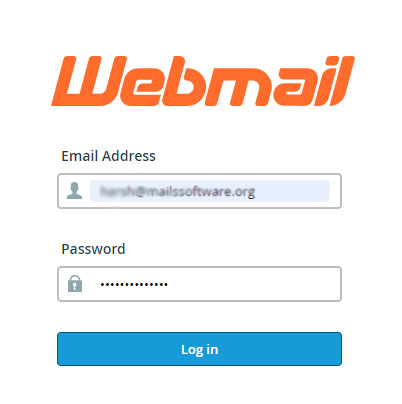
open-webmail

  • Select any Default Webmail Application to use further (like i choose horde)
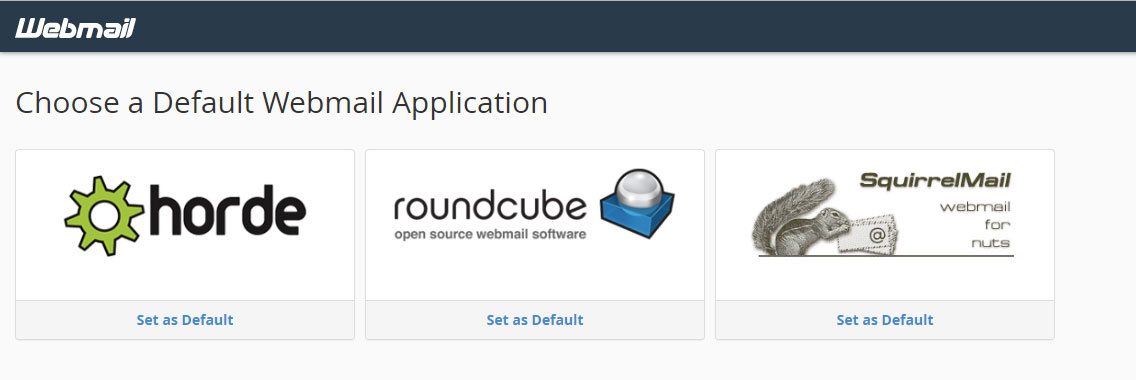
web-server

  • Now your Webmail is ready to use.
  • Now select the mailbox folder to use in Outlook. Right Click on the desired folder and click on the Export option.
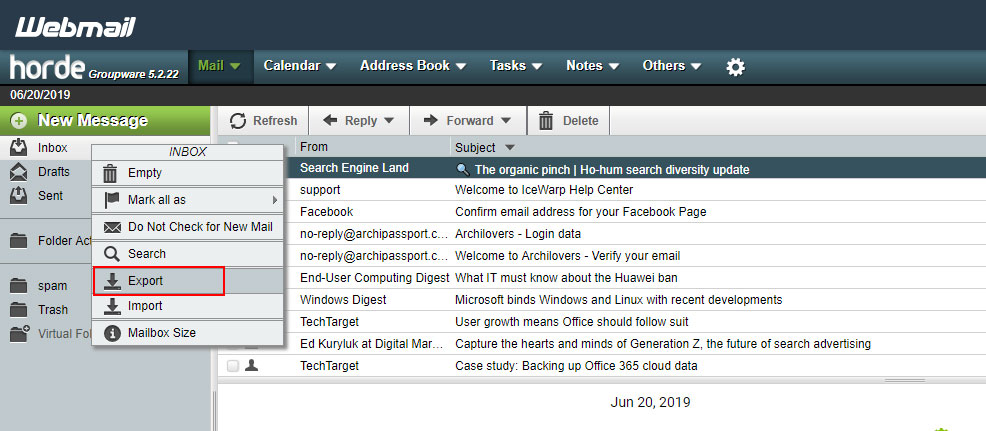
export-webmail

  • Now you can export Webmail data to MBOX file format – Download into an MBOX file & Download into an MBOX file (ZIP compressed). Select any one option- click on OK.

download-in-mbox

  • Downloading Webmail to MBOX will start automatically, and you will get the Mailbox data in “foldername. mbox” on your local PC/Laptop.

If you want to ensure the downloaded data is accurate, navigate to the folder that you have chosen during the migration.

How to use MBOX Data in Outlook?

After downloading the Webmail data in MBOX file format, you have to convert MBOX data to PST file format for using MBOX in MS Outlook. The MBOX to Outlook migration process is easy and flawless with our third-party MBOX Converter software. Download the software from here: MailsSoftware MBOX to PST Converter.

If you are not satisfied with my words, you can download the demo version of the software only to view the Webmail MBOX data without MS Outlook and export the top 20 items from every mailbox folder. For full access to the software, please buy the full licensed KEY for just $39.

How to Import PST in MS Outlook?

After successfully MBOX to PST Conversion, you must import the PST file in MS Outlook to use Webmail data to MS Outlook properly. I have described complete manual steps to import PST in MS Outlook. Please go through the blog:- Import PST to MS Outlook.

The post How to Download Emails from Webmail to Outlook? appeared first on MailsSoftware.

]]>