The post Thunderbird to Outlook Converter to Import Thunderbird to Outlook appeared first on MailsSoftware.
]]>If we take references from reliable sources like TrustRadius, Trustpilot, Capterra etc. which are reputed software-selling companies. In these 3 tools have been found to be the most professional which are mentioned below one by one:
MailsSoftware Thunderbird to Outlook Converter
This is another application that has a wonderful “Thunderbird to Outlook Conversion ratio”. The utility converts single or multiple Thunderbird files to Outlook PST format. This application works independently to convert Thunderbird to Outlook PST format. It is compatible with all Windows operating systems like Win 10, 8, 7, XP, etc.
Proficient features of this Thunderbird Converter:
- Auto load option: The Application provides an auto load option to load the MBOX File from the local device.
- Preview of the Mail folder: It generates previews of all folders containing email messages and attachments on the application reading panel area.
- Multiple Export Option: This software allows the export of Multiple Thunderbird MBOX files to various formats such as PST, EML, HTML, MHTML and RTF etc. file format.
- Save PST files: Under this tool, users can save Thunderbird email messages into a single or separate PST file format.
For the Use of this Thunderbird to Outlook Converter following steps are:
- Download and install MailsSoftware Thunderbird to Outlook Converter with a proper license.
- To add a Thunderbird file to the application, click on Add file button.
- In the pop window, select Mozilla Thunderbird/Postbox radio button << Auto Load << Next button.
- Tap on the Export tab and select the PST option from the drop-down menu in Select Export Option.
- Choose the option between combining all Accounts to a Single PST and Export Each Account to Separate PSTs.
- From the Folder icon, browse Destination PST to save the Thunderbird file in Outlook PST format.
- Lastly, click on the Export button to start exporting emails from Thunderbird to Outlook platform.
MailsDaddy Thunderbird to Outlook Converter
MailsDaddy Best Thunderbird to Outlook Converter is a precious tool used to export from Thunderbird to Outlook. It imports single or multiple Thunderbird files to Outlook PST format. This tool extracts email messages along with attachments to PST format. The application is fully capable to export Thunderbird to Outlook 2019, 2016, 2013, and older versions with full accuracy.
This tool has the below specification:
- Quick Search: Quick search is possible through this tool. Users can search email messages with different available features.
- Different export options: Users can export Thunderbird emails to Outlook PST, MSG, EML, HTML, and other various formats.
- Generates mailbox preview: The software displays all the OST mailbox data on the application wizard.
- Maintains metadata: Using it, losing metadata regarding the mailbox is zero. It maintains all email property in the same manner as before Thunderbird to Outlook conversion.
Follow the step to migrate Thunderbird to Outlook:
- Download and install MailsDaddy Thunderbird to Outlook Application in your system.
- Now click on add a file, press the autoload button, & click on next.
- After adding the Thunderbird MBOX file, click on Export Tab.
- Select PST (Microsoft Outlook (.pst)) and create a PST File For all MBOX Files.
- Choose Your Destination path, where you want to save your file, and click on the Export Button.
- You will receive a confirmation message and click on Close to exit at the end.
SysBud Thunderbird to Outlook Converter
SysBud Thunderbird to Outlook securely migrates Thunderbird email to Microsoft Outlook PST. This single wizard preserves all meta properties and provides seamless migration without any complexity. It converts the mailbox to PST file that the user opens in all Outlook’s latest and oldest versions like Outlook 2019, 2016, 2013, 2010, and 2007.
Key Features of Thunderbird Mailbox to Outlook
- Auto-scan option: If you don’t know where your file is located or stored, you can choose the Auto Load option.
- Create Single or different PST: The application provides an option to create a single or a Separate PSTs file to save Thunderbird email.
- Selection of folder: Provides selecting a specific folder or subfolder during Thunderbird to Outlook conversion process.
- No size constraint: There is no constraint regarding Thunderbird containing mailbox size to export in Outlook PST file format.
Follow the given instruction to export Thunderbird to Outlook:
- Download and install A2Z Thunderbird to Outlook Converter on your device.
- Open the downloaded application and click on Add file.
- Now tap on Auto Load to browse the MBOX file and click next.
- After that, press on Export tab << Select PST from Select Export Option.
- Browse Destination Path for storing Thunderbird email to PST format.
- Finally, click on the Export option and wait for a confirmation message.
Conclusion
This article is written for readers searching Thunderbird to Outlook Converter tool but confused about the main functionality of different Thunderbird converters. So in, this article has summarized all the best tools that have been positively reviewed on different software-reviewed sites. To get a free trial pack of the solution mentioned above, visit their official sites.
Read also: How to open & import PST file in Outlook?
Read also: How to Convert Microsoft .OST to .PST File in Outlook 2019
The post Thunderbird to Outlook Converter to Import Thunderbird to Outlook appeared first on MailsSoftware.
]]>The post Need of OST to MBOX Conversion and How to perform? appeared first on MailsSoftware.
]]>
To export MS Exchange Server or MS Outlook OST mailbox data in MBOX file format without losing data, you have to get any Third-party software. There is a manual method also but the manual method is so tricky, time-consuming, and has no guarantee for data security. That’s why the OST file conversion process with any third-party software would be the best and most secure. Download MailsSoftware OST to PST Converter software to export Outlook OST file data to MBOX file and many other file formats such as PST, EML, RTF, HTML, and MTML format.
Features of OST to PST Converter
MailsSoftware OST to PST Converter is the best software to convert OST mailbox data to MBOX
- Easy installation facility because it does not require any technical knowledge for installation.
2. It shows the Preview of OST file data whether it is corrupted or healthy with their structure intact.
3. It scans and repairs the corrupted or damaged OST files data and fixes all the bugs in one click.
4. It exports complete OST file data like e-mails, contacts, calendars, journals, tasks, and notes.
5. It exports OST file data into different formats like PST, EML, MSG, MBOX, and MHTML.
6. It exports the OST file without size limitations.
7. It maintains the metadata properties like To, Cc, Bcc, From, Subject, Date, etc.
8. It provides a feature to export and save selected folders or items in different formats.
9. It preserves the original information and text formatting structure with its hierarchy.
10. It splits the resulting PST into smaller PST or manageable sizes as per user requirements.
11. It provides file naming conventions for the EML, MSG, and MHTML formats to extract data from your specific date.
12. It is compatible with all Windows 10, 8.1, 8, 7, XP, etc.
13. It supports all Outlook versions such as 2019, 2016, 2013, 2010, etc.
14. It provides freedom to select the Destination path to export the file.
How to Convert OST data files to MBOX files?
First of all, download the MailsSoftware OST to PST Converter tool, then Run and install the software on your system.
Click on Add file option and browse the OST file.
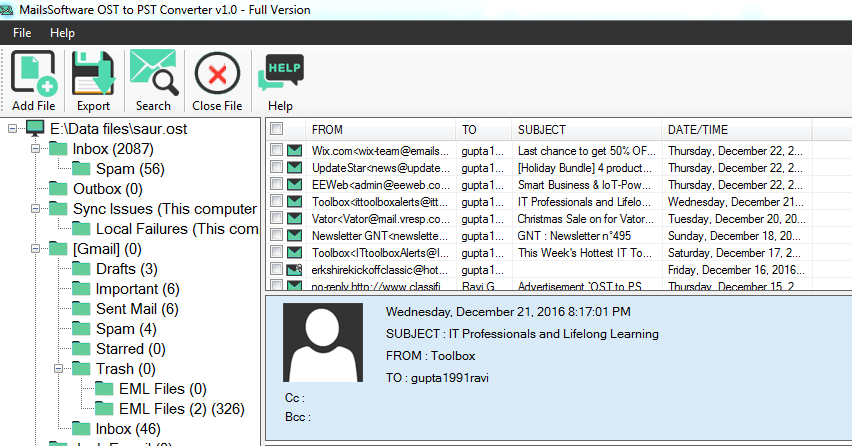
View the OST mailbox data >> Click on the Export
In the Export option, select MBOX and choose the destination path to export OST mailbox in MBOX format.
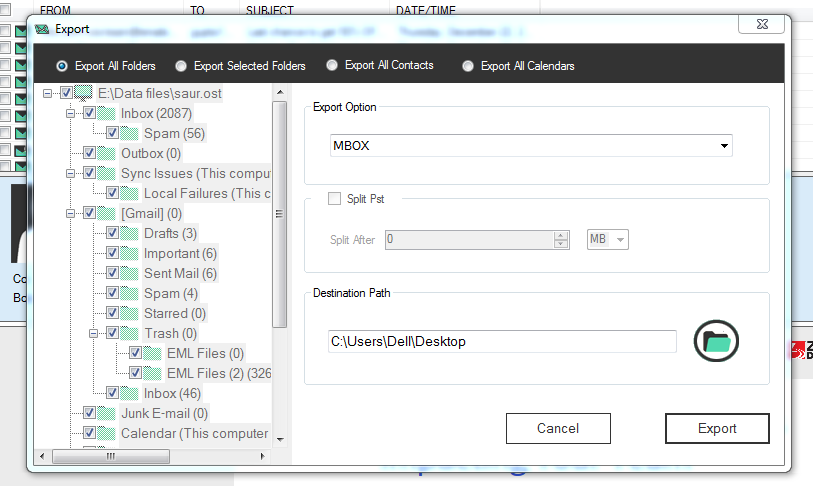
Click on the Export button, the process will start automatically and you will get the OST mailbox data in MBOX format.
A demo version of the MailsSoftware OST to PST Converter is available free of cost. You can download and evaluate the features of the software. It exports the first 20 emails from each folder to MBOX format. For complete OST to MBOX conversion, you have to purchase the licensed version. There are three types of licensed versions in a genuine budget i.e. Personal license for 49$, a Business license for 149$, and an Enterprise license for 299$.
Conclusion
With the multi-talented and multi-performing MailsSoftware OST to PST Converter tool, the user can export OST file data in various file formats at the lowest price with a 100% success guarantee.
The post Need of OST to MBOX Conversion and How to perform? appeared first on MailsSoftware.
]]>The post Convert SeaMonkey EMails to Outlook PST Format appeared first on MailsSoftware.
]]>As we know present time MS Outlook is the safest email client, which provides high-security features compared to SeaMonkey. This is why many SeaMonkey users want to move their data to MS Outlook. It is not directly possible to access MBOX files in MS Outlook. To access the SeaMonkey data to MS Outlook the user needs to convert SeaMonkey MBOX mailbox data to Outlook PST format.
Export Mail from SeaMonkey to MS Outlook
There is no manual method to export SeaMonkey mailbox data to Outlook. I would like to suggest you convert the data from SeaMonkey to MS Outlook, Use MailsSoftware MBOX to PST Converter Tool. It easily migrates all the SeaMonkey MBOX data to Outlook PST format with the same Metadata properties and Inline images. It has a simple and user-friendly GUI, it means any technical or non-technical user can easily operate the software without any technical support.
Software Features
- Easily Adds single or multiple SeaMonkey MBOX files at a time.
- Quickly exports SeaMonkey data to Outlook PST and many other formats like- EMLX, EML, MSG, RTF, HTML, and MHTML.
- Provides a preview facility for better SeaMonkey to Outlook conversion.
- Advanced date filter option, which helps to search specific MBOX emails.
- Easily migrate multiple SeaMonkey MBOX to a single PST and converts individual MBOX to individual PST.
- Naming convention option, which helps the user to save the data easily on the local device.
- Compatible with all editions of Windows OS and Microsoft Outlook.
The software provides an error-free conversion result for the SeaMonkey to Outlook conversion users. It gives two licensed versions for the users- The Demo version & The Full Paid version. The demo version of the software easily converts the first 20 SeaMonkey Mail data from each folder to Outlook PST format. To convert complete SeaMonkey mailbox data to Outlook the user needs to use the full Paid version of the software, which comes on a very inexpensive cost $39, $149, and $299. There is no file size limitation for the users.
Conclusion
I described a very easy method to convert SeaMonkey mailbox data to Outlook PST format. By using the software the user can export all the MBOX data from SeaMonkey to Outlook PST format without any error.
The post Convert SeaMonkey EMails to Outlook PST Format appeared first on MailsSoftware.
]]>The post Evolution Mail to Outlook Converter for Exporting data in PST appeared first on MailsSoftware.
]]>But Evolution Mail is not as popular and advanced as MS Outlook. This is why many users are switching their email accounts to Microsoft Outlook. MS Outlook has many advanced features and it provides attractive and helpful functionalities. It is very easy to use rather than other email clients because it has an eye-catching and user-friendly GUI. MS Outlook is more stable and secure than Evolution Mail.
MBOX to PST Converter solution to Export Mail from Evolution Mail to Outlook
If the users want to export Evolution Mail MBOX data to MS Outlook PST format then they can use MailsSoftware MBOX to PST Converter Tool. Really, it is the most proficient solution, which easily adds single and multiple Evolution Mail mailboxes data and converts to PST, MSG, EML, EMLX, HTML, RTF, and MHTML formats. It also supports 25+ MBOX-based email clients’ MBOX files for the conversion task. It has many attractive features such as-
- Easily export all Evolution Mail emails to PST in one click.
- Generates the Preview of all Evolution emails and their attachments.
- Convert all MBOX files in separate PST or Single PST.
- Simple and user-friendly Graphical user interface.
- Support in all editions of Windows OS such as- XP, 7, 8, 8.1, 10.
- Compatible with all versions of Microsoft Outlook.
- Split PST, converts large-size Evolution files to multiple small PST files.
The software also gives a free trial version for users, which helps to convert the first 20 MBOX emails from each folder to Outlook PST format with complete data integrity and accuracy. It gives a 100% accurate Evolution to Outlook Conversion result without losing any data. To export more than 20 items, the user needs to purchase the full Paid version. After using the full paid version, it can export unlimited Evolution Mail data to Outlook PST and many other formats.
Conclusion
I described a very easy solution in this blog to convert data from Evolution Mail to Outlook PST format. By using the MailsSoftware MBOX to PST Converter, anyone can easily export MBOX data to PST, MSG, EML, RTF, EMLX, HTML, and MHTML formats.
The post Evolution Mail to Outlook Converter for Exporting data in PST appeared first on MailsSoftware.
]]>The post Netscape emails to PST Conversion to Import Netscape to Outlook appeared first on MailsSoftware.
]]>Netscape is an email client application, developed by Netscape Communications Corporation and it was established in 1994 in Virginia. The Netscape email application can be easily accessed on both Windows and Mac OS. Netscape is a combination of both Netscape and Newsgroup. It supports both IMAP and POP3-configured accounts to send and receive email messages. It stores emails in MBOX file format.
MS Outlook is the desktop email client of Microsoft Corporation. It is the safest and trustable email client in the market. Nowadays many users are facing the problem of data loss or data corruption because some email clients do not upgrade their product according to time. To remove this problem the user switches email accounts to MS Outlook because it gives high security and much functionality for the users. MS Outlook is very easy to use compared to Netscape.
Netscape Emails to MS Outlook Conversion
To convert Netscape mailbox data to MS Outlook PST format then you can use MailsSoftware MBOX to PST Converter Tool. It is the most reliable and trustable solution to Export Netscape to Outlook format with complete data integrity and accuracy. Microsoft Outlook has a user-friendly Graphical user interface and many advanced features such as-
- It provides a Bulk export option for converting all emails at once
- Easily Add Netscape Mailboxes data and give a 100% accurate conversion result.
- Preview of Netscape emails and their attachments.
- Save MBOX data to PST, MSG, RTF, EML, EMLX, HTML, and MHTML formats.
- Create a single PST for all MBOX files or create a separate PST for each mailbox.
- Supportive with all WindowsOS editions.
- Makes compatible PST files for all versions of Microsoft Outlook.
The Software comes in two variations one is the Free Demo version and another one is the Full Paid version. The Demo version of the software easily converts the first 20 Netscape mail from each folder to Outlook PST format. If the user uses the full Paid of the software then they can convert unlimited Netscape emails to PST format without losing a single bit of data.
Conclusion
I provided an easy solution to convert Netscape emails to Outlook PST format, by using the MailsSoftware MBOX to PST Converter anyone can easily export Netscape mail data to MS Outlook without any error.
The post Netscape emails to PST Conversion to Import Netscape to Outlook appeared first on MailsSoftware.
]]>The post Migrate Postbox emails to Outlook PST Format appeared first on MailsSoftware.
]]>Postbox is a popular desktop-based email application for Windows and MACOS users. It was developed and launched in September 2008. It is specially built for email users to perform general email tasks. Postbox has a simple, interactive, and user-friendly GUI. Which makes it the first choice for Windows and Mac users. It stores news clients and a popular feed reader for the users and provides much-advanced business services like- email management, an address book, a notebook, a web browser, and a calendar. The user can also easily schedule his meeting plans and safes reminders.
But Due to MS Outlook’s advanced features and security, many users are moving their email accounts to Outlook. MS Outlook is more safe and easy to use to compare Postbox. It saves individual emails in EML format. MS Outlook stores entire mailbox data in the MBOX file extension. But there is no way to directly access MBOX data to Outlook so in that case, the user needs to convert Postbox data to MS Outlook.
The solution to convert Postbox to Outlook
To convert Postbox mailboxes data to Outlook PST format I would recommend using MailsSoftware MBOX to PST Converter Tool. It is a great utility that easily exports the complete Postbox data to PST format without any error. The software also supports 30+ MBOX-based email clients’ MBOX files for conversion. It has many attractive features such as-
- Easily adds and migrates Postbox emails to PST.
- Quickly scans the Postbox mailbox data and generates the preview.
- Provides 100% safe and accurate Postbox MBOX to Outlook conversion results.
- Easily works without the installation or configuration of MS Outlook.
- Maintains the HTML formatting and Inline images after the Postbox to Outlook migration.
- Exports MBOX emails data to PST, MSG, EML, EMLX, RTF, HTML, and MHTML formats.
- Compatible with all editions of Windows OS and MS Outlook.
It is a simple and user-friendly GUI application so anyone can easily operate the software without any technical support. The software also gives a free demo version for the users, which easily converts the first 20 data from each mailbox to PST format without losing any data. If the user wants to export more files then they need to purchase the Paid version of the software because the purchase version of the software has no data conversion limit.
After successfully completing the Postbox MBOX to PST conversion, you have to import PST in MS Outlook. Click here for importing PST in Outlook.
Conclusion
I gave a very easy solution to convert Postbox mailbox data to Outlook. By using the MailsSoftware MBOX to PST Converter, the user can easily export the complete Postbox emails to PST format.
The post Migrate Postbox emails to Outlook PST Format appeared first on MailsSoftware.
]]>The post Convert PocoMail Emails to MS Outlook PST appeared first on MailsSoftware.
]]>PocoMail is a Windows-based email client, which was developed by Poco-System in 1999. It was originally designed to protect against spam and virus attacks. The Poco system is used in its own scripting language (Poco-script) instead of Microsoft and Java scripts. The latest version of the PocoMail was released in 2009 with some new features like- editing, sending/receiving emails, and a strong Bayesian filter for preventing spam. PocoMail is able to configure with POP3/ IMAP Protocol It easily adds multiple accounts.
The Reason behind Convert Poco Mail to Outlook
There are several reasons to export a mailbox from Poco Mail to MS Outlook such as-
- The PocoMail was an outdated email client so it is not possible to directly open the PocoMail mailbox in MS Outlook.
- MS Outlook is a more secure and trustable storage of mailbox as compared to Pocomail.
- MS Outlook has an attractive and user-friendly Graphical user interface.
- Outlook comes with many advanced features compared to PocoMail.
Best Solution to export PocoMail to Outlook
MailsSoftware MBOX to PST Converter is the most proficient solution, which easily converts the mailbox data from PocoMail to Outlook PST format. It gives 100% accurate data conversion results without losing a single bit of data. It provides many advanced functionalities such as-
- Easily adds single and multiple PocoMail mailboxes at a time.
- No need to install and configure MS Outlook for conversion tasks.
- Generates the complete PocoMail mailbox preview for better conversion.
- Simple, attractive, and user-friendly Graphical User-Interface.
- It keeps the Meta-data properties and Inline images after the convert PocoMail to Outlook.
- Compatible with all versions of Windows Operating System & Microsoft Outlook.
After the complete conversion task, the user can easily access the PocoMail data to any version of MS Outlook. It maintains the data accuracy and integrity after the PocoMail MBOX email to Outlook PST conversion. It gives a free demo version for the user, which easily transfers the first 20 PocoMail emails from each mailbox to Outlook PST format. To export more than 20 files the user can also purchase the paid version as per as need, which comes at a very inexpensive cost $39, $149, and $299.
Conclusion
I described a very easy solution to convert PocoMail emails to Outlook PST format without any errors. MailsSoftware MBOX to PST Converter is the best solution to transfer PocoMail mailbox data to Outlook PST format.
The post Convert PocoMail Emails to MS Outlook PST appeared first on MailsSoftware.
]]>The post How to Download Emails from Webmail to Outlook? appeared first on MailsSoftware.
]]>What is the Webmail?
Webmail is a web-based email account, and a proper internet connection is required to use this. We can use this for using the mailbox data of the website’s email account. Suppose you are working in any organization and they provided the company’s domain email ID and Password. Then where will you use that email ID and Password? Webmail allows opening an email account with a domain webmail server. You can’t read, view or open old or new emails or drafts without an internet connection.
What is the MS Outlook?
We all know that Outlook is a worldwide desktop-based email client provided by Microsoft to use any Offline and Online email account. With the help of MS Outlook, you can easily send and receive emails and tasks, make contacts, save calendars and perform many operations. It saves the mailbox data in two types of data files named OST and PST. Both the data files were created in different scenarios.
The main thing about Outlook is it is compatible with PST file format to use other email client mailbox data. So if you want to migrate from any other email client, you have to convert the mailbox data file to PST file format.
How to convert Webmail to Outlook?
MS Outlook provides more features than Webmail, which is strongly secure and user-friendly. You can also access the mail and other items in offline mode and when you connect then send the data to someone. There are three steps to perform Webmail to Outlook migration-
- Download the Webmail data to MBOX format
- Export MBOX to PST by using MailsSoftware MBOX to PST Converter
- Import PST in MS Outlook
So now let’s see the process to export Webmail to Outlook PST
- First of all, open Webmail with proper web address – provide Email ID and Password >> Click on Login
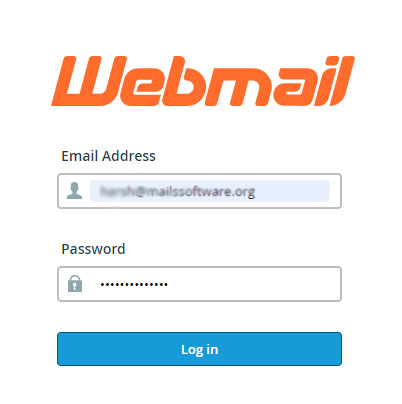
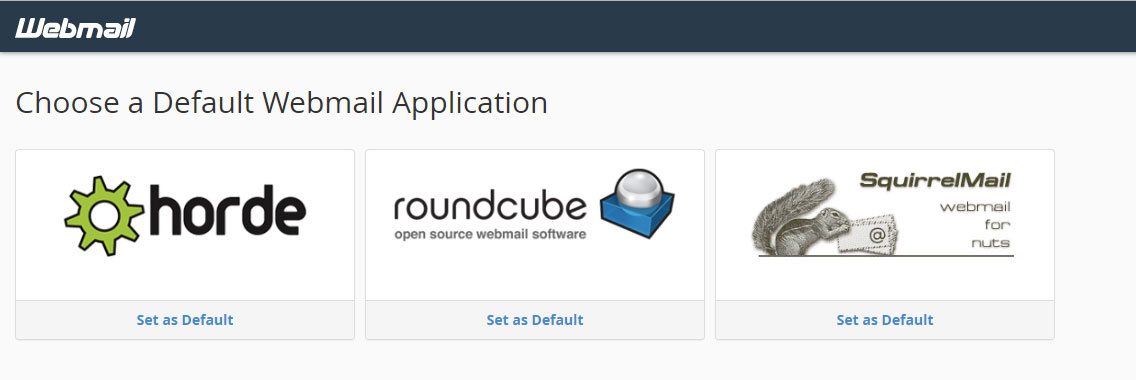
- Select any Default Webmail Application to use further (like i choose horde)
- Now your Webmail is ready to use.
- Now select the mailbox folder to use in Outlook. Right Click on the desired folder and click on the Export option.
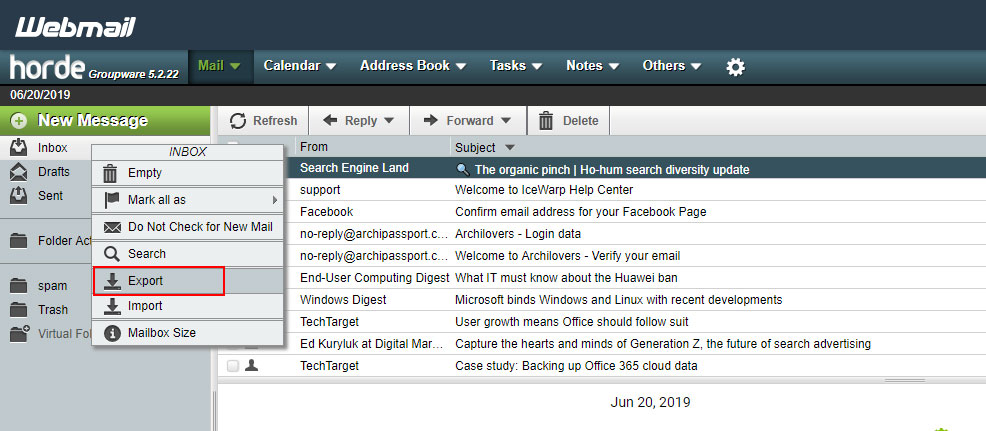
- Now you can export Webmail data to MBOX file format – Download into an MBOX file & Download into an MBOX file (ZIP compressed). Select any one option- click on OK.

- Downloading Webmail to MBOX will start automatically, and you will get the Mailbox data in “foldername. mbox” on your local PC/Laptop.
If you want to ensure the downloaded data is accurate, navigate to the folder that you have chosen during the migration.
How to use MBOX Data in Outlook?
After downloading the Webmail data in MBOX file format, you have to convert MBOX data to PST file format for using MBOX in MS Outlook. The MBOX to Outlook migration process is easy and flawless with our third-party MBOX Converter software. Download the software from here: MailsSoftware MBOX to PST Converter.
If you are not satisfied with my words, you can download the demo version of the software only to view the Webmail MBOX data without MS Outlook and export the top 20 items from every mailbox folder. For full access to the software, please buy the full licensed KEY for just $39.
How to Import PST in MS Outlook?
After successfully MBOX to PST Conversion, you must import the PST file in MS Outlook to use Webmail data to MS Outlook properly. I have described complete manual steps to import PST in MS Outlook. Please go through the blog:- Import PST to MS Outlook.
The post How to Download Emails from Webmail to Outlook? appeared first on MailsSoftware.
]]>The post Download Google Mailbox (Gmail) data by using Google Takeout appeared first on MailsSoftware.
]]>Gmail is a free web-based email service developed by Google. It allows users to send and receive or manage emails in the presence of internet connectivity.
Requirement for Using Gmail
The user needs Login ID (User Name) and Login Password to use the Gmail account. Open www.gmail.com and provide the mandatory credential.
What is the Google Takeout?
Google Takeout is a tool that is normally used to download the data of other Google services. Google Takeout transfers data of other Google services like Gmail, Google Calendar, Hangout, Maps, YouTube, Google Photos, etc to keep their backup archive.
Here, we will discuss how to download Gmail data using Google Takeout.
How to extract Gmail data using Google Takeout?
Users may pull out Google takeout Gmail archive data by following these steps:
- Log in to the Google Takeout account using the Google username and password.
- A page will open where you find an option to CREATE A NEW ARCHIVE. Under this, you will find two options-
- Select data to include
- Customize archive format.
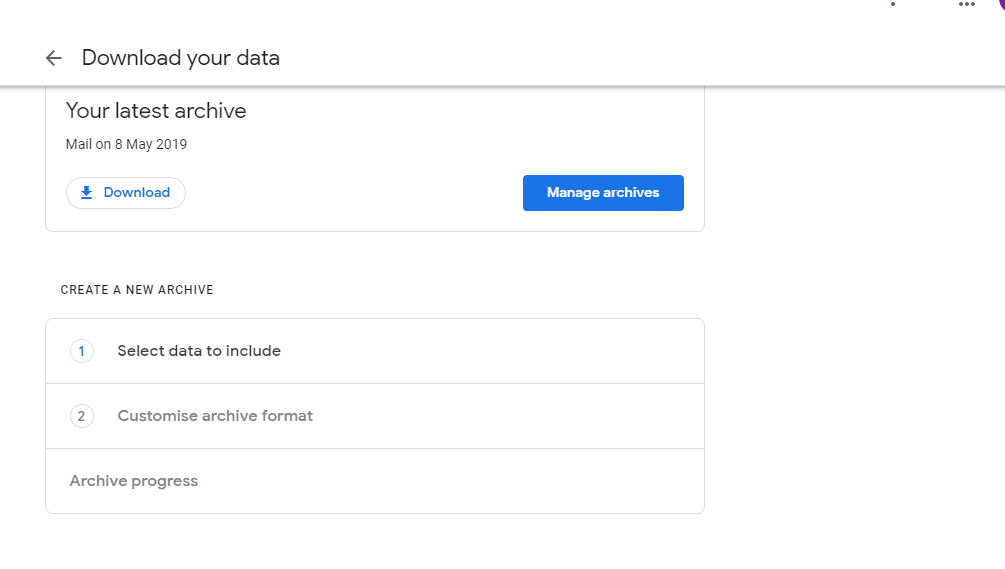
- Under select data to include, you need to deselect all the Google services and select Mail. If you choose the Mail service to download its data, you will find two options for downloading data-
- MBOX format
- All mail data included

- When you click on MBOX format you will get a message saying that the data will get exported into MBOX format.
- If you choose the second option all mail data included, then it will provide you an option to select or deselect the folders of the emails. And click on Next Step.
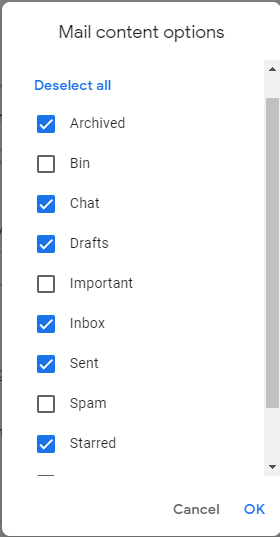
- You will be directed under the second option. Under Customize archive format, you need to choose the delivery method, export type, file type, and archive size.
- Under the Delivery method, you need to choose “send the download link via email” to get the download link in your mail.
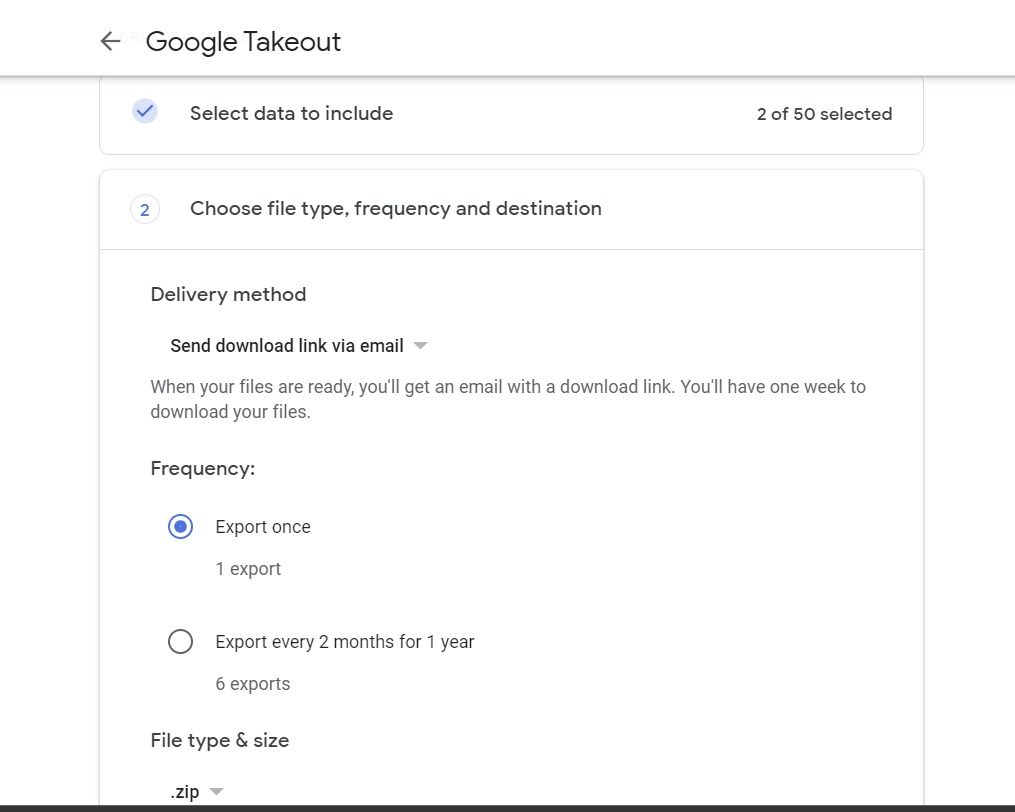
- Under Export type, you need to choose whether you want a one-time archive or want to schedule exports every 2 months for a year.
- You can also choose the File type either in .zip or .tgz form.
- Also can choose the archive sizes 1GB, 2GB, 4GB, 10GB, and 50 GB.
- Now, click on Create Archive.
- Then you will get an email notification saying Archive of Google data requested.
- Once the Google takeout archive is ready you will get another email providing you the archive email data and the options to download and manage the archive.
- Once you click on the Download button through your mail then it directs you to the Google takeout account to download the data. You can also directly go to Google Takeout account and download data from there, click the Download button adjacent to the newly created archive.
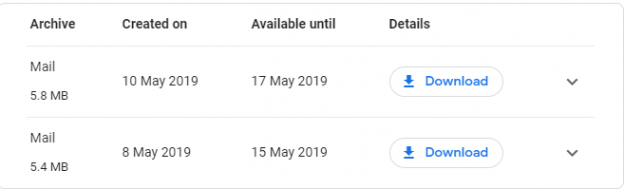
You will get data in zip form in MBOX format to your desired download location. You just need to extract the zip data.
Conclusion
If you want to import Google takeout data (downloaded MBOX file) to Outlook, then you need to convert the MBOX to PST. Free download the demo version of the MailsSoftware MBOX to PST Converter tool to export multiple MBOX files to Outlook PST format along with complete emails and attachments.
The post Download Google Mailbox (Gmail) data by using Google Takeout appeared first on MailsSoftware.
]]>