The post What is OST and PST files in Outlook? appeared first on MailsSoftware.
]]>Upon configuring your email account in Outlook, you, as a user, create a local copy on your device. This local copy facilitates access to previously synchronized email messages, contacts, tasks, and more, even when you’re offline and not connected to the internet.. A local copy can be in an OST or PST file format, depending on your configuration process.
What is an OST file?
This file is created when Cached Exchange Mode is enabled while configuring email accounts in Outlook using IMAP, Outlook.com, Office 365, and Exchange accounts.
Notes: Even after configuration with IMAP account, Outlook makes a PST file to store the email database in the prior Outlook 2010 version.
What is a PST file?
PST is another file format that Microsoft Outlook uses to save users’ mailbox data. This data file type is created when users configure their email account in Outlook and choose the POP/SMTP standard type.
OST files become useless when
Case 1: When you want to share your email information or database with another device, Outlook doesn’t support this task. It is possible only with the help of Free OST viewer tool.
Case 2: If for some reason, your Outlook profile is removed from the Exchange server, you cannot access your stored information in the OST file.
Case 3: You cannot recover anciently deleted email items from the Exchange Server. You will lose deleted emails or Other Outlook items forever.
Case 4: When you reach the maximum storage limit, your OST file becomes inaccessible. You need to back up in PST format to free up space for new email items.
Case 5: Due to unforeseen circumstances, the Exchange Server might crash, causing damage or corruption to the Offline data files. Consequently, you will need to repair the OST file to regain access to previously downloaded items.
PST files become more useful when
Case 1: If you have stored the email items in PST format, you can easily send it on another device to open and read the PST file in Outlook.
Case 2:In case you inadvertently delete any email items from the mailbox, you can readily recover them from the Exchange Server.
Case 3: Deleting or removing the Outlook profile through the Exchange Server doesn’t impact the stored Outlook items.
Case 4: The stored email database in a PST file mailbox does not take space in Exchange Server. So Exchange server works uninterruptedly.
Case 5: You can easily repair a damaged or corrupted Outlook data file (.pst) by utilizing a third-party OST repair tool or the built-in repair tool within Outlook.
Difference between OST and PST files
- OST file stands for offline storage table and PST file stands for personal storage table.
- OST file uses the .ost extension and PST file uses the .pst extension to save the email database in a local file.
- The default location of the OST file is C:\Users\user\AppData\Local\Microsoft\Outlook, and the PST file is stored in Documents\Outlook files.
- You can’t apply password protection to OST files, but PST files can be secured with passwords. In the event of password forgetfulness, third-party password removal tools can offer assistance.
Final verdict
After analyzing both Outlook data file formats, we can easily conclude that the OST file has many disadvantages in saving email information compared to the PST file format. So I recommend you use PST format instead OST file. If you have an OST file, convert OST to PST file format on an urgent basis to avoid undesired circumstances.
Read more: How to open & import PST file in Outlook?
Read also: How to Convert Microsoft .OST to .PST File in Outlook 2019
The post What is OST and PST files in Outlook? appeared first on MailsSoftware.
]]>The post How to Convert Microsoft .OST to .PST File in Outlook 2019? appeared first on MailsSoftware.
]]>So both OST and PST files provide specific functions, sometimes users face deadlock when it comes to OST files. They cannot retrieve their mailbox information in the event of Exchange Server unavailability. So below, I will discuss the possible ways to convert Outlook OST to PST manually or using the software. But before that, you should know why this conversion is needed.
Download OST to PST Converter to Convert OST file into Outlook PST
- Easy to export offline OST files into PST
- Allows users to Bulk migration
- Secure in PST File Conversion
Why Is OST To Outlook PST Conversion Needed?
Some of the main causes why users need to convert OST to PST in Outlook 2019 include:
- Exchange server crash.
- Accidental deletion of Exchange Server account.
- Data Migration.
- Exchange server maintenance.
- Rebuild the OST file.
Above I have mentioned some reasons why there is a need to do OST to PST conversion. Now we will discuss some methods of doing the conversion.
Different Methods How to Convert Microsoft OST to PST
Method 1: Automated Solution
As we all know that manual solutions are not secure in case of bulk migration and are even not secure for non-technical background users. So to overcome these problems try a nominated solution MailsSoftware OST to PST Converter Tool that quickly converts .ost to .pst file format. Some crucial features of the tool are given below. Using this solution users can safely export OST to PST for Outlook 2019/2016/2013, 2010
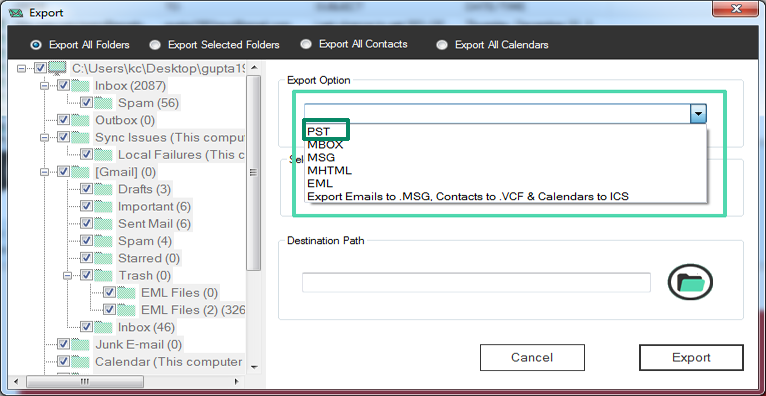
- Allows users to export Exchange OST files to Outlook PST, MSG, EML, MBOX, and MHTML formats.
- Offers Date Range Filter, Naming Convention, and Preview option to make the conversion process effective.
- Easily recover corrupted or damaged Exchange OST files.
- Helps to ferment heavy offline OST files into small Outlook PSTs.
Method 2: Import-Export Wizard
- Open the Outlook and go to the File option in the top right corner.
- After that tick to Open & Export and choose the Import/Export option.
- Choose Export to a file>> Next from the pop-up screen.
- Now selectOutlook Data File (.pst)>> Next. Check on the Include subfolders option>> Next from the pop-up screen.
- A new window will open and browse the location to store the PST file. At the end click on the end
Method 3: Archive OST to Outlook PST Process
- Install the configured Outlook and open the OST, you want to import into OST.
- Then go to the File menu>> info and mailbox cleanup then choose the Archive.
- Now check on the “Archive this folder and all subfolders” and choose the date in the Archive items older than an option.
- Once it has been done browse the location to store the Archive PST file on the device. At the end click on Ok.
- When the process gets ends, your Outlook OST file is successfully stored in PST file format.
Conclusion
Above we have mentioned manual and expert solutions that will tell users how to convert OST to PST in Outlook. Now it is up to you whichever solution suits try that one. Hope the article helps you out.
Read More:- Top 3 Free OST Viewer Tool to View Offline OST Files
The post How to Convert Microsoft .OST to .PST File in Outlook 2019? appeared first on MailsSoftware.
]]>The post How to Open & Import PST file in Outlook? appeared first on MailsSoftware.
]]>If you are an Outlook user, there can arise many situations when you need to open a PST file to access the stored information. This situation could be something like this:
1:- If you have configured your same email account on a new computer.
2:- When you want to access other Outlook users’ email databases.
3:- When you have shifted to another email client but you want to access previous email messages.
How to import PST files in Outlook 2016 and others all?
There are two methods to import a PST file into Outlook. We will know both methods one by one.
1:- Using Open & Export Method:
Step 1: Open the Microsoft Outlook application.
Step 2: Press the File tab on the top left corner of the screen.
Step 3: The File tab will consist of the option of Open & Export. Click on it.
Step 4: After that, click Open Outlook Data File.
Step 5: You will see the Browse window. Here select the PST file that you want to open.
Step 6: Finally, you can reach all the data you tried to open in the Outlook application. Click on the folder in the Outlook bar.
Step 7: To exit the application, click on Close.
2:- By new items drop-down menu button
Step 1: Click on Home >> New Items >> More Items >> Outlook Data File.
Step 2: Under Create or Open Outlook Data File window, select PST file, add a password for security purposes and click on the Ok button.
Step 3: Now, a form will appear to add a password for PST. Create the password and click on Ok.
Note: Click the check box to Save this password to your password list. Otherwise, if you forget, it cannot be recovered without a third-party password removal tool.
Step 4: Check in your All Folder list with the name of the PST file to read the PST data.
How to Open PST files without Outlook?
If you do not have to profile on Outlook, but you want to open and read the PST file data, you are required to use the MailsSoftware Free PST Viewer is a third-party tool.
Step 1: Download and install the MailsSoftware Free PST Viewer on your computer.
Step 2: Click on the Add File button, browse the PST, and tap on Open.
Step 3: Now the PST file data will be loaded into the application. Select an email message within a folder to view email information stored in the PST file.
Step 4: Click on the Close button on the top left corner to exit the application.
Conclusion: Hopefully, you have successfully opened a PST file in Microsoft Outlook by following the steps mentioned above. In this article, we have tried to explain all the things broadly. Please comment if you still face problems after reading the full article. We would be happy to help you.
Read also: Top 3 Free OST Viewer Tool to View Offline OST Files
Read also: What is OST and PST files in Outlook?
The post How to Open & Import PST file in Outlook? appeared first on MailsSoftware.
]]>The post Top 3 Free OST Viewer Tool to View Offline OST Files appeared first on MailsSoftware.
]]>Sometimes when a user’s Outlook OST file gets corrupted for uncertain reasons and users totally surprised and took tensioned for their crucial email databases. OST file Viewer helps users to read and view offline OST files again without Outlook & Exchange Server installation. In this post, I will assist you, in how you view your OST file databases using top-rated 3 tools.
Reason Behind OST File Corruption:-
There are multiple reasons why user faces OST file damage-related issues. Some of the common reasons are:-
- Due to a sudden hardware problem
- When the storage capacity is exceeded
- In the presence of bad sectors in the hard drive
- Due to a sudden short circuit in electricity
- Barriers to using unknown software
- The storage limit has been reached
- Outlook Add-in is not compatible with the current version
- Outlook is not working properly
Top 3 Free OST File Reader Software To View OST Files
MailsSoftware Free OST Viewer
This OST Viewer Tool is a much-appreciated tool provided by MailsSoftware, one of the most reliable data care brands in the world. The application is helpful to read all inaccessible OST files Without Microsoft Outlook. It displays complete OST file databases with full accuracies, like- E-mails, Calendars, Notes, Contacts, Journals, Tasks, etc. Here users can quickly filter and find specific Outlook OST file email stuff.
Pros:
- Very easy to download, install and run for all tech and non-tech users
- Compatible to scan & fix OST file junks before presenting in the preview panel.
- Superstitious freeware solution to access and read offline OST file with 100% accuracy.
- Facilitates users to import and view multiple OST files at a single time without any alteration.
- Shows all Exchange Server OST files with maintaining folder hierarchy & text formatting.
- It can be easily installed on Win 10, 7, 8, XP, Vista, and other Windows OS-supported systems.
Cons:
- This software is also not available for Mac versions.
- The installation process of this solution is a little bit slower than MailsDaddy Tool.
MailsSoftware OST Viewer Pro: This program also comes with pro version features that enable users to convert OST files into PST, EML, MSG, MBOX, HTML, and MHTML formats. Here users can split heavy offline OST files into small Outlook PST files. The software easily converts all contacts in .vcf and calendars data in .ics format. It offers users to export some select offline OST files/emails/folders into Microsoft PST format.
MailsDaddy Free OST Viewer
If you want to go for a trustworthy solution download MailsDaddy Free OST Viewer which enables users to read all offline OST files without investing money. Most professional developers and Outlook clients are suggested to users this free ost file opener tool. Lacks of users read their OST files Worldwide with 100% user satisfaction. The application provides a scan facility that quickly recovers corrupted and inaccessible OST files before presenting them in the preview panel.
Pros:
- Allows accessing all complete OST file databases without any alteration.
- A newbie user can also easily work on it and view OST file email & other items.
- Helps to add multiple OST files, scan, and show the preview of inaccessible & orphaned OST files.
- No requirement of MS Outlook or Exchange Server to open OST files.
- Retains all internal folder structure, meta properties, and text formatting.
- Offers to filter, find and read some specific OST file emails.
Cons:
- Now available for MAC users.
MailsDaddy OST Viewer Pro: MailsDaddy provides the Pro version of this OST viewer solution to convert OST files into EML, MSG, MHTML, contacts in CSV, and calendar details in ICS format. Using this users can also convert required OST file databases without any changes in original content.
A2Z Migration for OST to PST
To get the responsive result in OST file viewing download A2Z Migration for OST to PST Tool. This outstanding solution offers a free preview panel to read all offline OST files without purchasing. It is also compatible to recover corrupted OST files and demonstrate complete email items preview without spending money. Here users can easily filter, find and view some required OST file messages without any hard effort. After purchasing this users get more options, like- file conversion, selective data conversion, split PST, and other advanced features.
Pros:
- Offers an easy work environment to quickly access it, even by a newbie user.
- Helps to easily retrieve all damaged & inaccessible offline OST files.
- Use the free preview panel to open & view Exchange Server, Hotmail, and IMAP OST files.
- Converts OST files into PST, EML, MSG, EMLX, HTML, and RTF formats.
- Helps to save Contacts and Calendars to .vcf and .ics formats separately.
- Allows fragmenting heavy OST files into small Outlook PST files.
- Filter & convert selected OST files into PST & other given formats.
Cons:
- The utility is only available for Windows users.
- Needs to add other advanced features.
Free Demo Pack:- Users can use the free demo pack of this solution to read OST files free of cost. Another more, It also enables users to convert the first 20 email items per mailbox from OST to PST, EML, MSG, and other formats without any cost.
Closing Statements
These are some unique OST File Viewer Tool that helps to read OST file databases without any hard effort. You can use any one of them to access and view OST file emails. I believe all tools will much helpful to fulfill all your requirements.
Read More: How to Convert Microsoft .OST to .PST File in Outlook 2019
Read More:-Need of OST to MBOX Conversion and How to perform?
The post Top 3 Free OST Viewer Tool to View Offline OST Files appeared first on MailsSoftware.
]]>The post What is Microsoft Outlook and Its Features? appeared first on MailsSoftware.
]]>Outlook is a client-server platform that gives access to its users to organize the mailbox of their employees, company, etc. Outlook gives us the liberty of using Windows, Mac, android, and ios. With Microsoft Outlook we can enjoy the benefits of viewing the interface in our own way, can schedule a mailing system, can access all mail addresses under one Windows lineup, can share scheduled calendars, create meetings, appointments, and tasks, can add up contacts, etc. Although it gives us a way to work fast with a lot of shortcut keys.
Microsoft introduced Outlook in 1997 as a replacement for the exchange client, schedule+. In 1998 an updated version came into the lineup of Outlook with a stable configuration and the addition of features. In 2002 another update is received for an updated Windows view and specially designed for Windows XP, somehow it lacks something which is improved in the 2003 version. The next version came into the lineup in 2007 with the addition of a lot of features related to attachments and improvisation of the whole platform.
In 2010 the addition of social networking and group message was a big update of that time. In 2013 new things were introduced like people hub, faster performance, and compression of files took place. The 2016 version consists of the most required update i.e. cloud computing. The most recent version 2019 came with features like different time zone settings, updated inboxes, and sorting of emails.
Some Additional Features of Microsoft Outlook
- Works offline as well as online.
- Future emails can be scheduled days ago.
- Mails Data is saved in the system and at the administrator as a copy.
- Offers high data security.
- Can manage multiple email addresses in a single window.
- Can Arrange meetings and give you reminder updates for your work.
- Data can be shared with contacts directly.
- Gives the option to add tasks for today and upcoming days.
What About Outlook Files (OST & PST)?
There are two protocols used to access Outlook data, one is IMAP another is POP.
POP (post office protocol) is a simple Protocol that only allows downloading messages from your inbox to your local computer. On the other hand, IMAP (internet message access protocol) is much more advanced and allows users to see all the folders on the mail server. The Data on Outlook can be saved on the desktop as an offline copy of data so that it can be accessed without the internet and even after the deletion of Outlook data.
POP saves data files with .pst extension and it is easily accessible from any device. Moreover, it can be shared with anyone, it doesn’t have any restrictions. Where on the other hand IMAP (in 2013 or later versions) saves data with .ost extension and it has some limitations in that it can be accessed from only one device in which it was configured. If your .ost file gets corrupted or wants to use on another system you have to convert the .ost file into .pst format.
Closing Statement
The facts shared above are just small pieces of information. These facts will clear your scenario about Microsoft Outlook and its uses over other email clients.
Know more:- What are OST and PST files in Outlook?
Read also:- [Solved] How to Fix Outlook Unknown Error 0x80040119 easily and for free
The post What is Microsoft Outlook and Its Features? appeared first on MailsSoftware.
]]>The post How to Easily Import Contacts to Outlook from Gmail, Hotmail, and Yahoo for free? appeared first on MailsSoftware.
]]>Let’s understand it with an example – Suppose you use any web-based email client such as Gmail, Hotmail, or Yahoo Mail to manage your personal email profile, and you use Outlook for the professional one. Suppose you need to import contacts to Outlook from Gmail, Yahoo Mail, or Hotmail to Outlook. The question is how you can export contacts to Outlook.
If you are in the same situation and looking for the answer and step-by-step working guide, then this blog will definitely help you. Using the same method, we have transferred Gmail contacts to Outlook with full safety of data.
Don’t worry the working Guide to migrate contacts from web-based email clients to Outlook is very easy, even a non–tech person can easily import contacts to Outlook by following these steps.
So let’s get started –
1-) How to transfer email contacts from Gmail to Outlook?
First, let’s talk about how we can download Gmail contacts to Outlook. This complete process is divided into 2 steps –
1 – Extract Contacts in CSV.
2 – Transfer the CSV file in Outlook.
Steps to Export Gmail contacts in CSV –
This process is so easy, just follow these steps –
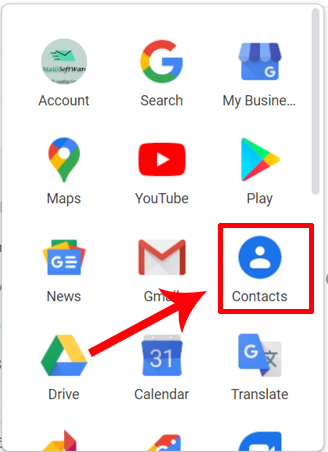
1 – Open your Gmail Account >> Click on the dotes icon on the top right of the screen, just left to your profile logo.

2 – In the new window Choose the Contacts option.
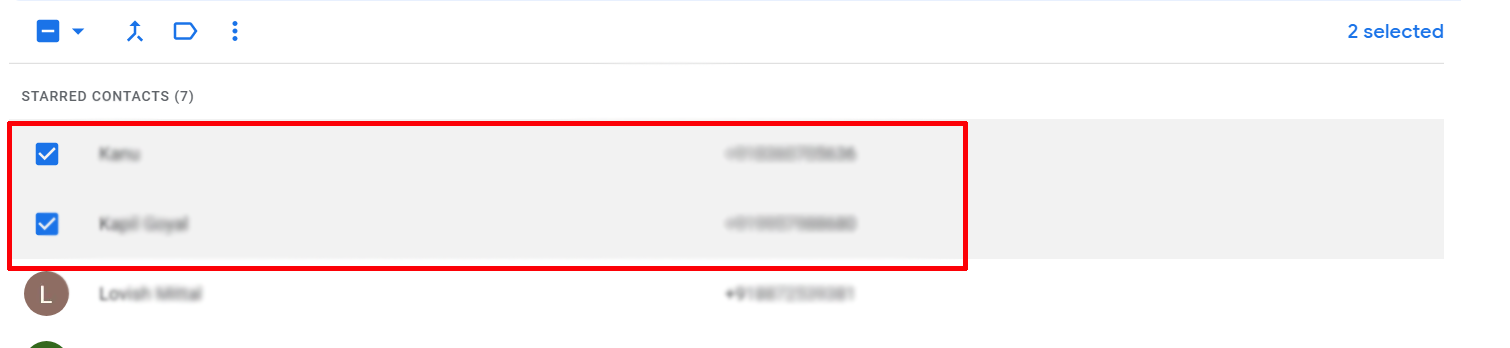
3 – In the new window, select the contacts you want to migrate >> You can also choose all contacts.
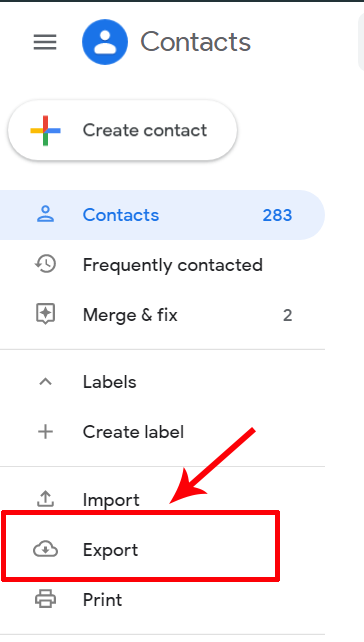
4 – Then click on the Export option on the left panel of the screen.
5 – Choose the Outlook CSV option in the New window >> Click Export.
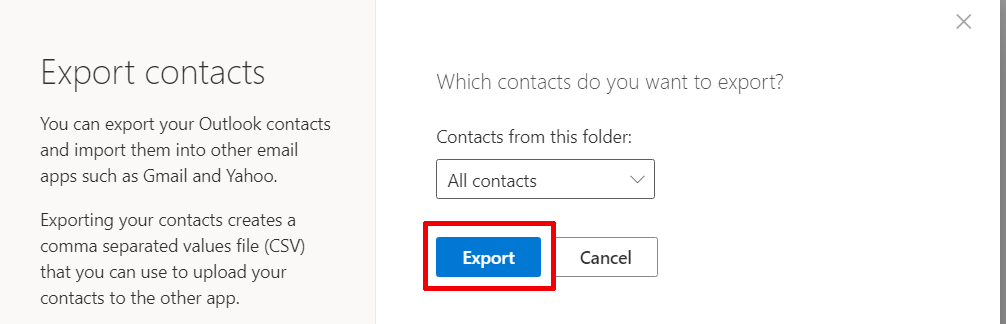
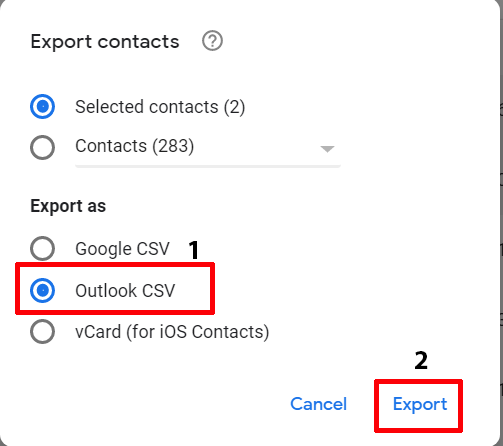
The contacts will be downloaded in CSV file format on your computer.
Steps to import CSV contacts to Outlook 2019, 2016, 2013
1 – Open Outlook >> Click on File.
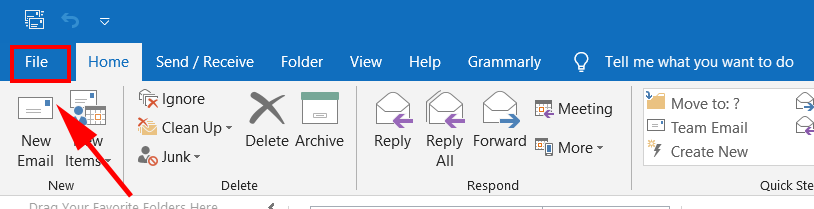
2 – In New Window select Open & Export >> Import/Export Option.
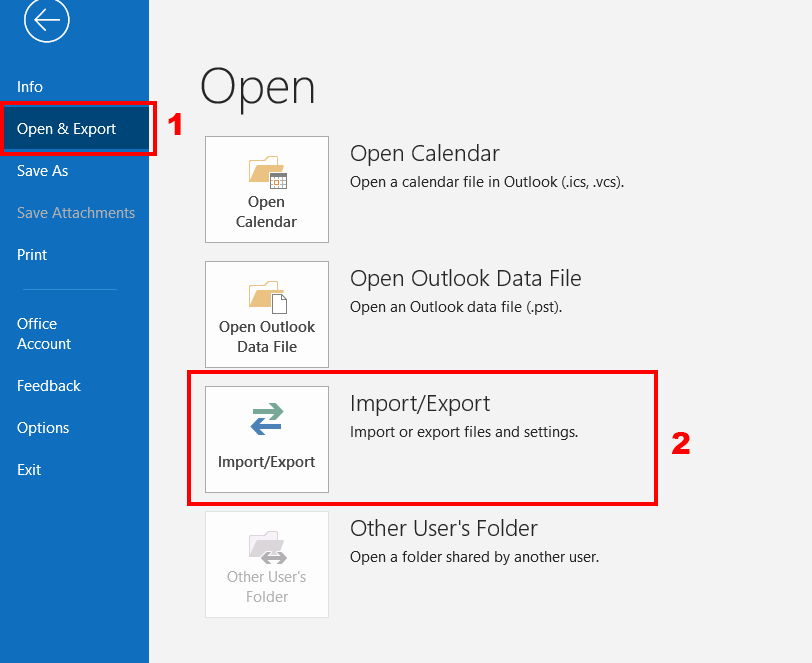
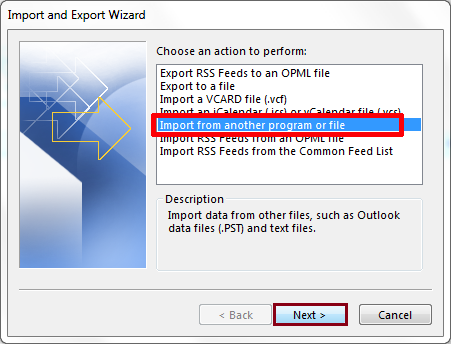
3 – Select Import from another program or file option in Import/Export Wizard >> Next.
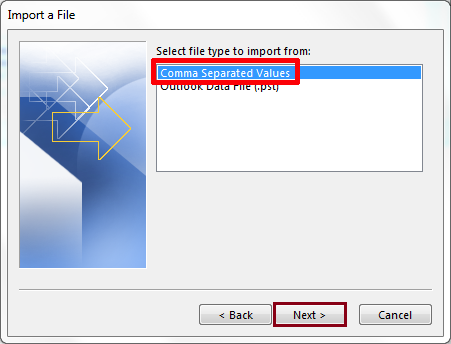
4 – Choose the Common Separate Values option in the new wizard >> Next.
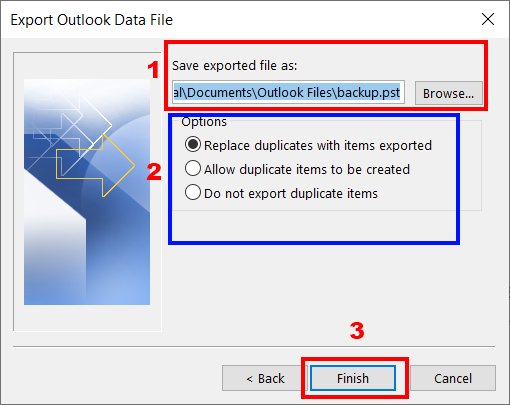
5 – Browse the CSV file from your system and choose to Allow Duplication to be Created option >> Next.
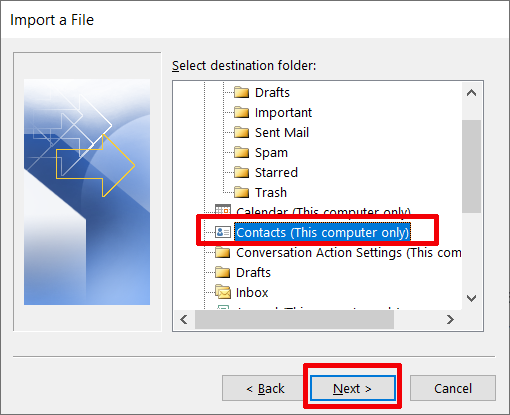
6 – Select the Destination Folder to save the data >> NEXT.
7 – In the new Window click on Finish.
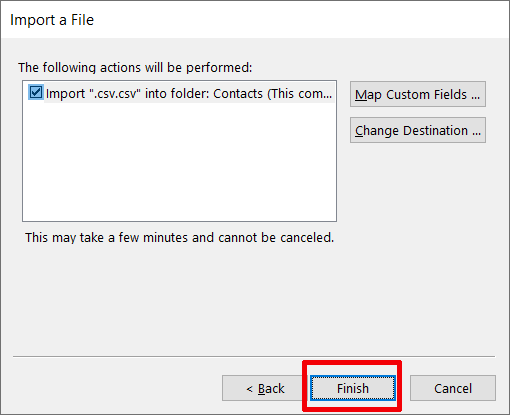
The process will start and depending upon CSV size it takes time. See how easy it is 
2-) How to transfer email contacts from Yahoo to Outlook?
Transfer Yahoo contacts to Outlook process is simple and is divided into 2 Parts.
1 – Extract Yahoo Mail contacts in CSV.
2 – Import CSV file into Outlook contacts.
Steps to download Yahoo contacts to CSV file.
1 – Open your Yahoo Mail account.
2 – Click on Contacts located on the right side.
3 – Click on this icon >> Select Export (CSV).
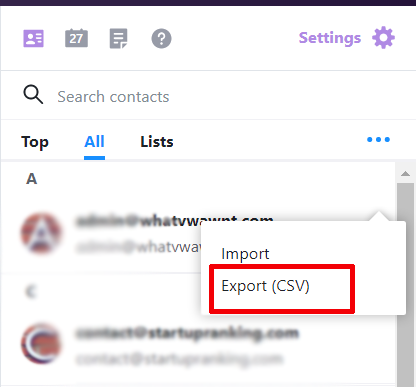
The Yahoo contacts will be downloaded into your system in CSV file format.
Note – Now you can import Yahoo contacts to Outlook 2016, 2019, 2013. Using the same process which we have used in the Gmail section. So, you can see it from the Gmail section.
3-) How to transfer email contacts from Hotmail to Outlook?
Hot Mail or MS Outlook.com mail services is a popular email client. The process of contact migration is divided in 2 parts.
1 – Download contacts from Hotmail in CSV.
2 – Upload CSV file to Outlook contacts.
Steps to Backup Contacts from Hotmail in CSV.
1 – Open your Hot Mail Account >> Click on the People icon to access contacts.

2 – In the new window Selects the contacts you want to transfer >> Click on Manage.
3 – From the drop-down select the Export option.
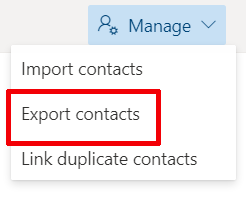
4 – In the new window click on Export.
Once you click on export the complete data of Outlook Contacts will save in CSV file format on your computer.
Note – Now you can export Hotmail contacts to Outlook 2016, 2019, and 2013. Using the same process which we have used in the Gmail section. So you can see it from the Gmail section.
Sometimes, due to corruption in the OST or PST file (as per the case) of MS Outlook, your imported contacts don’t show in the desired folder in MS Outlook. In this situation, you need to repair that file. And for this MailsSoftware OST to PST converter is the best solution if you are using an OST file.
And if you are storing data in the PST file, then you can use the PRO version of MailsSoftware Free PST viewer. Both the software will first scan the Outlook file then repair all its bugs and convert data in PST, EML, MSG, MHTML, and MBOX file format.
Conclusion
I hope this blog has helped you to migrate contacts from Web Clients like Google, Hotmail, and Yahoo to Outlook. As you see, the process to import contacts to Outlook is very easy. In case you have any confusion then feel free to contact us.
The post How to Easily Import Contacts to Outlook from Gmail, Hotmail, and Yahoo for free? appeared first on MailsSoftware.
]]>The post How to easily extract calendar data from OST file of Outlook? appeared first on MailsSoftware.
]]>I am going to tell about the free manual process, as well as a paid third-party tool, for the abstraction process. You can go with any of them as per your choice, but if these conditions apply to your OST mailbox, then there is no other option than going with the Professional tool.
1 – The OST file is orphaned or damaged.
2 – The Outlook is not connected to the Exchange server.
3 – Outlook is not accessible due to software or hardware issue.
If this are the case, then you need an OST to PST migration tool.
So let’s get started –
1- Manual Free Process to take out calendars from .ost file.
The manual process is totally free-of-cost method to extract Outlook calendars from MS Outlook. Just follow these simple steps and draw out the complete data of calendars in just a few clicks –
1 – Open MS Outlook >> Click on File.
2 – Click on the Open and Export option.
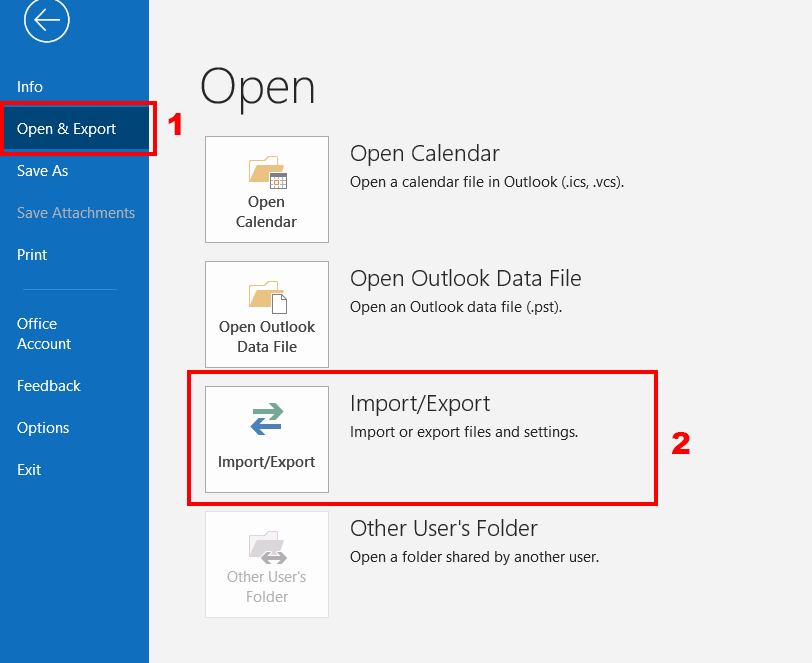
3 – In the new window “Select Export to a file” >> Press Next.
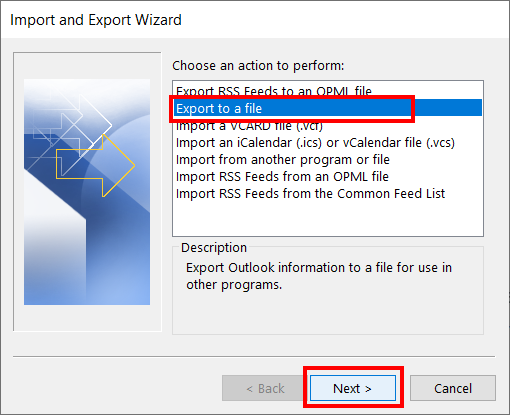
4 – Select Outlook data file (.pst) >> Click Next.
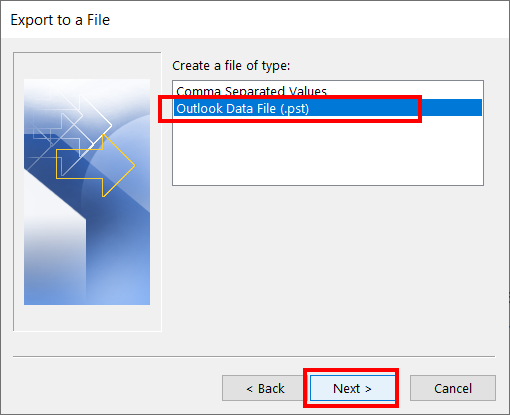
5 – Select the calendar to extract the calendar from the OST.
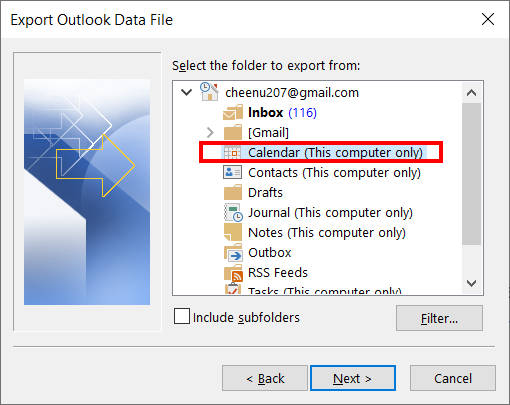
6 – Mark the include subfolder box. >> Press Next.
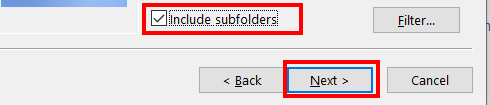
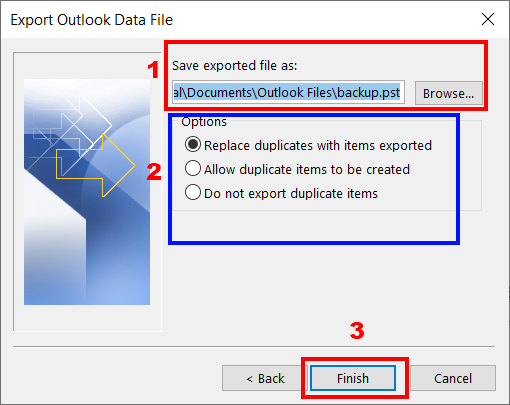
7 – Provide the Destination Path >> Choose the duplication option as per your choice >> Click Finish.
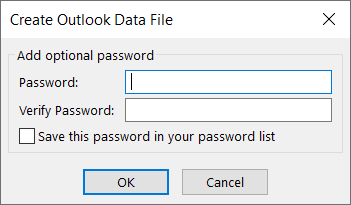
8 – If you want the security of this file then create a password >> Press OK
After exporting the calendar from the OST file in PST format, you can import this PST file into any Outlook account to access its data.
The manual process is coming to an end here now let’s talk about one of the best premium OST file exporter utilities.
The name of the software is MailsSoftware OST to PST Converter. This OST converter tool can easily download calendars from Outlook OST files in their original properties, and that’s too in just 3 simple clicks.
Apart from this, you can also export the complete data of the .ost file in its actual properties to PST, EML, MSG, HTML, MHTML, and MBOX file format.
2- The professional way to import Outlook calendar
First, download the software from MailsSoftware’s official website. Install & Run it.
1 – Open the software and click on Add file.
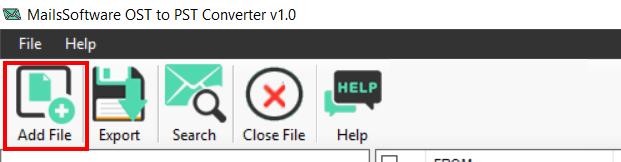
The software scans the complete OST mailbox and finds & fixes all its bugs. After that, you can see the complete content of OST in its original property.
2 – Click on the Export Button.
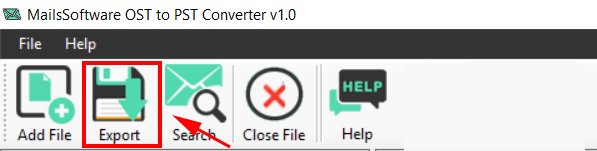
3 – In the new window –
Select the “Export Calendars” option >> Provide Destination >> Click the “Export” button.
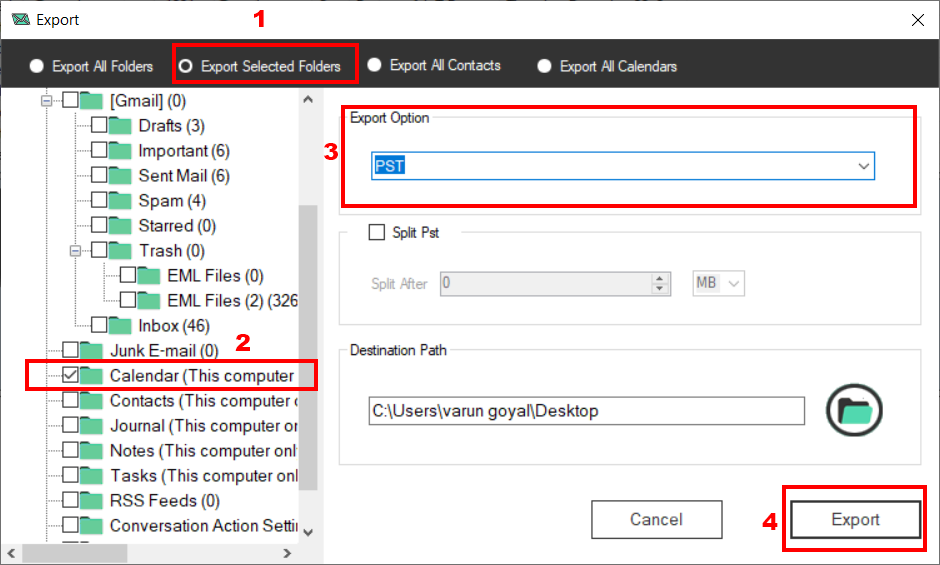
The data of the calendar will be abstracted from OST in ICS format. You can add this .ics file to any Outlook version.
But if you specifically want to export the calendar in PST format then follow this step.
Select Export Selected folder >> Mark Calendar folder >> Choose PST as export option >> Click export.
Conclusion
I hope this informative blog will help you to extract the calendar from the OST file of MS Outlook. You can export calendars from Outlook healthy .ost file using the manual process. But in case of damaged .ost you can download the free demo version of MailsSoftware OST to PST converter.
The demo version will download the calendar from the Outlook OST file in PST, EML, EMLX, HTML, MSG, and ICS file format in original properties.
Both methods are free and safe you can use any one of them as per your choice.
The post How to easily extract calendar data from OST file of Outlook? appeared first on MailsSoftware.
]]>The post How to shift to Working online mode from offline in Outlook? appeared first on MailsSoftware.
]]>1 – Insure the email account.
2 – Internet issue.
3 – Accidently enable offline mode.
In this blog, I am going to describe a simple solution for sifting to the online mode from offline. So let’s get started –
Visual Cues of Offline mode.
Some visual cues indicate whether you are working online or offline in MS Outlook. If this icon is showing on the right bottom side of MS Outlook, it means you are working in offline mode.

One more visual clue

If this icon is showing on the taskbar of your computer, then it means you are in offline mode.
Steps to follow for switching to Online mode.
1 – Open MS Outlook
2 – Click on Send/Receive >> Click on Work Offline to change its status.
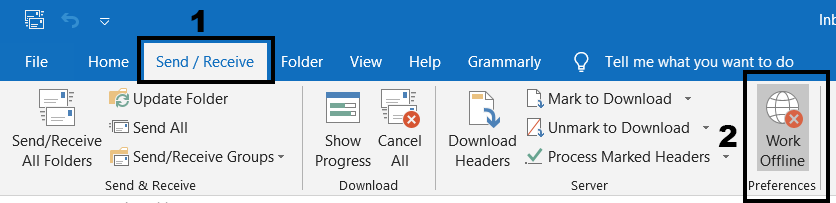
Note – If the “Work Offline” button has shade in the background, that means you are not connected to the internet.
3 – If the shadow is removed from the background of the work offline icon. It means you have successfully shifted to online mode.
What if you are still offline?
There are many reasons “why your Outlook shows in offline mode”. Let’s take a look at some of the common occurrence reasons.
1 – If your internet is working fine, there might be chances of a problem with the mail server. To check this you have to log in to your email with a website (outlook.com). If you are not able to send/receive email from the website. Then contact your admin.
2 – If you can send/receive email from the website. It means the mail server is fine. But there might be possible chances that your system needs updates.
3 – If the system is up to date. There may be a problem with the account setting.
Tips to reconnect to Outlook –
A – Check for updates –
1 – Open MS Outlook >> Click File.
2 – Click Office Account >> Office Updates.
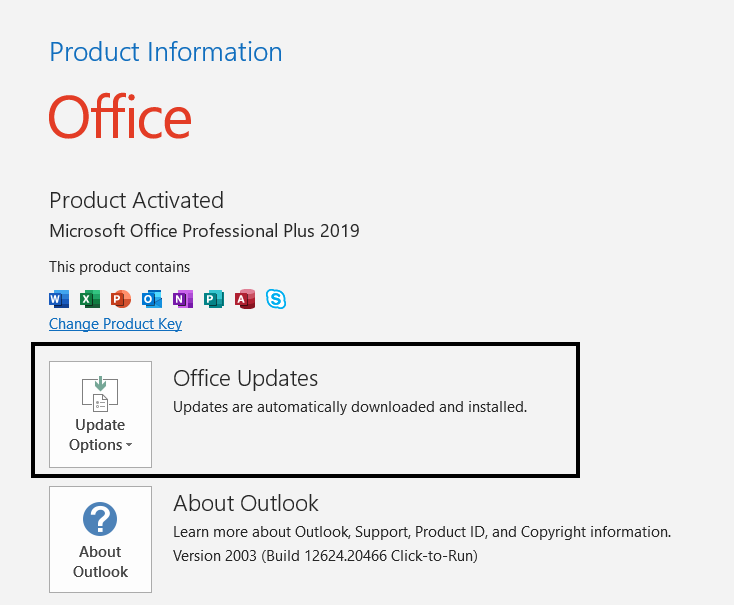
B – Creating a new profile
There might be a chance of a problem in your current account setting. So we recommend you to remove the current profile and add a new one.
Steps to remove profile
1 – Open MS Outlook >> Click on file >> Account setting.
2 – Account Setting >> Select the profile you want to remove >> Click remove.
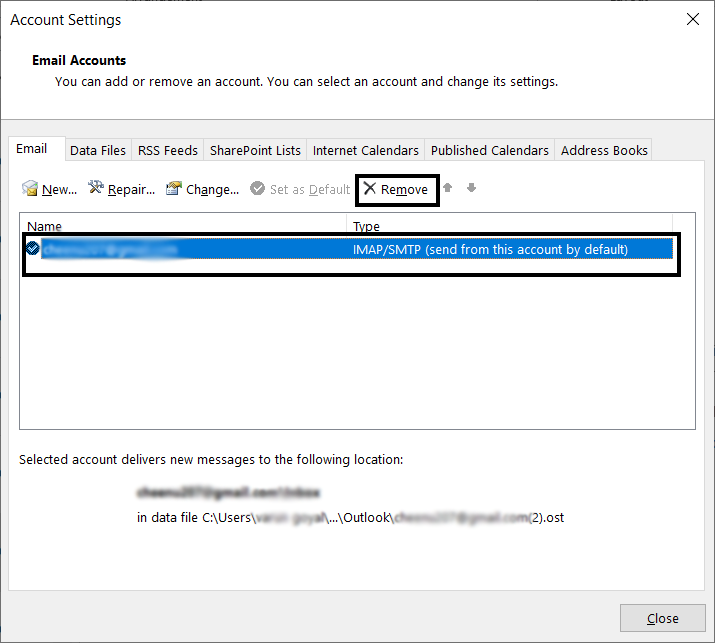
Steps to Add new profile
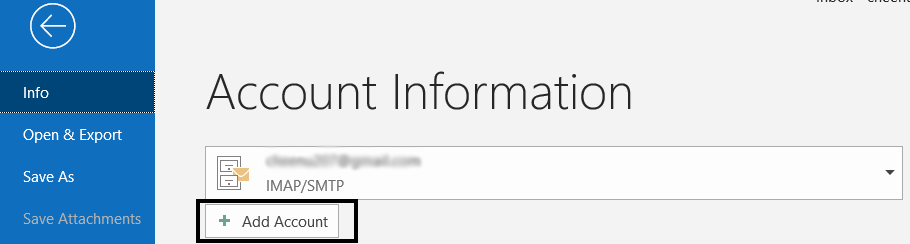
1 – Open MS Outlook >> Click on file >> Add Account.
Is your OST file gone corrupted?
As we all know that Outlook stores profile data in OST (offline storage table) file format in the users’ system. Sometimes when we continue to work offline in Outlook all the data is stored in OST. There are chances of this OST file getting corrupted due to various reasons. In this situation, you need a tool to repair OST file so that any unsynchronized is retrieved.
MailsSoftware OST to PST converter is one of the excellent tools, that migrates even an orphaned .ost complete data, after repairing all bugs to the PST file.
Conclusion
I hope this blog helps you to solve your problem of shifting to online mode from offline. Apart from these, there are other many reasons why you are not able to work online in MS Outlook. The situation may arise when your offline work Is not automatically synchronized due to corrupted or damaged OST. To solve this issue, use the highly recommended MailsSoftware OST to PST converter.
The post How to shift to Working online mode from offline in Outlook? appeared first on MailsSoftware.
]]>The post Difference between Gmail and MS Outlook appeared first on MailsSoftware.
]]>If you are confused between Gmail and Outlook and searching, what is the difference between Gmail and Outlook? Pros and Cons of Gmail VS Outlook? Which is the best between these two? Which will provide you with the best experience? Then in this blog, you will get the answer to all your queries.
Bonus – You will also get to know which one is better for business
So let’s get started
What is Gmail?

Gmail is a free email service provider of Google, it is a web-based email service. In this, you will send and receive emails, make contacts, calendar, and make notes, add tasks. You can assess the Gmail account from the web or by third-party App. Which configured mails through POP and IMAP servers.
Every account adds to Gmail has an extension of @gmail.com, you can also schedule a mail-in Gmail. Since it is a free email service you have only been provided with a space of 15GB.
All emails receive and sent through Gmail are stored in Google servers. So Google can access your private mail which is the biggest drawback of Gmail. You can also get a backup of all your emails from Google. But you can’t blame Google in case your mail data is deleted from the server because it is a free service.
That is why all big enterprises use their custom mail account and server for communication with their clients and customers.
What is Outlook?
Outlook is a personal information manager by MS Office, it is a desktop-based email application in which you can configure any email account. Outlook is included in the MS Office suite, apart from sending and receiving emails you can also save contacts, make tasks, plan to-do lists, and see the calendar.
It must be noted that Outlook is a desktop-based email client, it provides the service of configuring any email account in it. You can also use your Gmail account in Outlook. Now you may be thinking, why should I configure my Gmail account in Outlook? Well, you will get a couple of benefits if you do that –
1 – A copy of all your mail data will save in your system in the form of OST and PST files. so you can easily take backup.
2 – You will access your email account offline, which means you can see previously downloaded emails.
3 – You can write a new mail and save it to default without Outlook.
(It should be noted that Microsoft also provide free email address which is called @Outlook.com and Hotmail.com)
Top Difference between Gmail and MS Outlook
Now you have understood the meaning of Outlook and Gmail, their working and benefit. let’s discuss the difference between these two – 
Email client Vs Email service provider
The first difference is Gmail is an email service provider, it provides the service of sending and receiving emails. On the other hand, MS Outlook is an email client that consumes the services of all email service providers.
In simple words, in Gmail, only accounts that have the @gmail.com extension at last in their account name can be configured. But in Outlook, you can configure your email account with any email service provider like Yahoo Mail, AOL Mail, Zoho Mail, Hot Mail, etc.
Outlook folder Vs Gmail labels
In Outlook you can add multiple folders in an email account and in this new folder, your can group similar emails. For eg, you can add a new folder named “important file” and now you can transfer all your important emails to this folder.
In Gmail, the system is different instead of grouping similar emails into a new folder Gmail stored them in labels. You can also apply a label filter to a particular email address and then every mail received from that email address will go to the applied label.
Outlook Flag Vs Gmail Star
In Gmail, you can bifurcate a message that is important by applying the star icon. But in Outlook, you can bifurcate a mail by assigning a flag to it. Also, there are many colors available to flag a message and you can choose any according to the importance of the message.
Moving Spam Emails
In Outlook you have to manually transfer all spam emails coming from an email account to the junk email folder. But in Gmail, you can apply the label filter to the email account that sends spam emails, and then all emails from that particular account will automatically move to the trash label.
Composing new Mails
The system of composing new mail is totally different in Outlook and Gmail. In Outlook a new window will open when you click on a new mail button to compose a new email. But in Gmail, a pop-up will appear on the existing window when you click on the compose button.
This means you can see any emails message and all Gmail features when you are composing a new message in Gmail. But in Outlook, that not the case because a new window will open if you click on the new Email button to compose a new email message.
Pons and Cons of Gmail and Outlook
There is no such Pons and Cons of Gmail and Outlook, both have their own feature, and you can use any of them as per your requirement. But there is a benefit of using Outlook, you can get extra security for your data because all your mail data will save in your system. Outlook is paid utility, so there is no problem with space in Outlook. But you will get a limited space of 15 GB in G-mail.
The case when Outlook is best to use
If you have an email account, whose data is important to you then you should use that account in Outlook. Like your professional email account, the Account that you use to send important messages. An email account that you use to do money transactions.
Conclusion
I hope that through this informative blog you have understood the meaning of MS Outlook and Google Gmail. Basic differences between these two, pons and cons and also the cases when Outlook should be used instead of Gmail. Still, if you have any doughty in your mind feel free to contact us. We will be very happy to help you.
The post Difference between Gmail and MS Outlook appeared first on MailsSoftware.
]]>The post [Solved] How to Fix Outlook unknown Error 0x80040119 easily for free appeared first on MailsSoftware.
]]>Its simple interface made it popular among users because even a nontechnical person can use it easily. But many times the user of Outlook faces a common unknown Error 0x80040119 while using it. If you face the same error and if you are searching for an easy method to fix it then in this blog, you will definitely get a working solution.
The best thing is, all the methods that I explained will be free and are 100 % secure to use. So you don’t get any promotion of any paid tool in this blog, the only things you get are free, easy and safe ways. Before going to the solution directly, let’s understand the reason behind the error and its symptoms.
So let’s get started
Top Reasons for Outlook Error 0x80040119
After analysis of the various cases, where the user has pointed to the same error, I providing you with some of the common situations where this Error will hinder your working in MS Outlook.
- Corrupted PST file– The most common reason behind this error is the corruption of the .pst file. A PST is a file extension that is used by Outlook to store data in your local system. If your PST file got corrupted it will hinder your email account to connect with email servers. The most effective way to solve this is repairing PST with the SCANPST.EXE tool or with MailsSoftware free PST viewer.
- Professional AV involvement– If you are using a third-party anti-virus and you have turned off the Window defender, then sometimes your anti-virus will break the connection between Outlook and the email server. In this situation, you have to uninstall your AV with its remnant files for fixing the error.
- Outlook account is configured incorrectly – Sometimes if you configured your Yahoo and Gmail email account manually, chances are there that your email account is configured incorrectly. In this case, your email messages can’t be fetched properly in Outlook and this error pops up. Don’t worry, you can fix this error in the account setting easily.
- Enlargement of PST file – This is the most ignored and common cause for this error, generally, the user doesn’t delete their old email message in the inbox and doesn’t archive their old emails. This all causes outgrow of the PST file over a period of time and outgrowth PST files are easily prone to corruption and damage.
Symptoms of Errors 0x80040119
Normally the error occurs when the user tries to read send and receive an email message or when a user tries to the deleted message inside Outlook. Usually, this message pops up when the error occurs.
“An unknown error has occurred. 0x80040119”
You can receive this error in any Outlook version whether it is Outlook 2003 or 2019 and when you interact with this error.
- All windows with the active program will crash.
- Outlook mailbox data will not be accessible.
- Your system got crashed.
- The window will respond slowly to the keyboard and mouse.
Easiest ways to Fix Outlook 0x80040119 Error
Here are some of easiest and the simplest techniques to fix Outlook 0x80040119 errors. I explain all the solutions one by one. If one solution does not work then move on to another.
A – By using the Inbox repair tool
This method is used to repair damaged PST files because the damaged PST file is the common reason behind this particular error. There are many cases when error-affected user 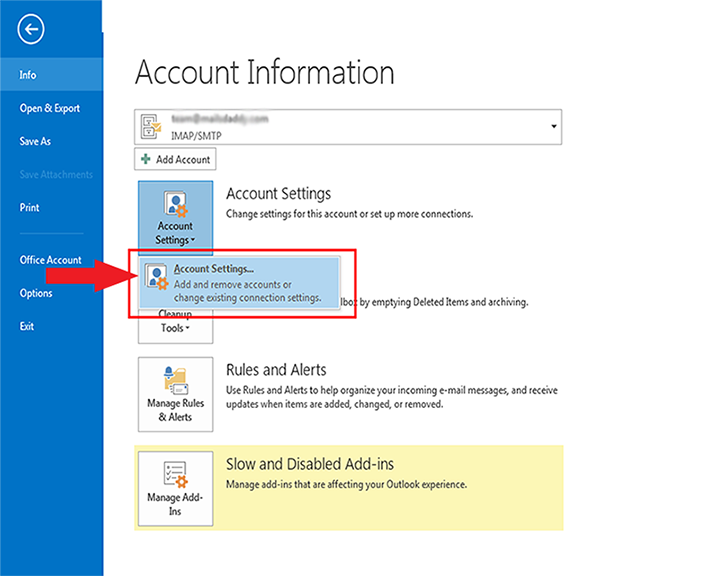
 s, use this technique and resolve their problems.
Note: – This method is only applicable to Outlook version 2013 and above. So if you have an older version, then move down to the second method.
This tool is included in all Outlook versions but for you, I have attached the link (click here) to download it.
1 – Close Outlook (completely) and all associated programs.
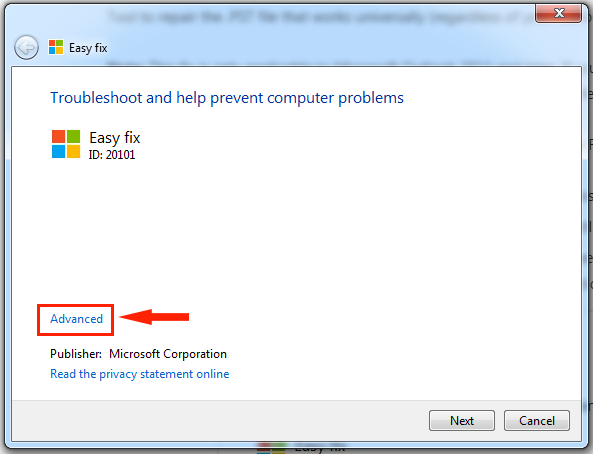
2 – Launch Inbox repair tool >> click on the Advance hyperlink in the software window
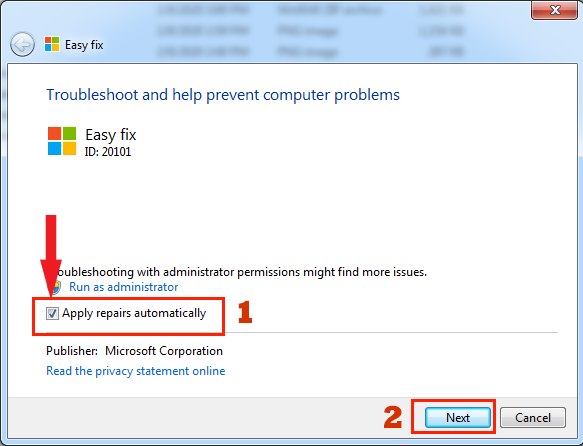
3 – Tick the box of Appling repairs automatically. Then Hit the Next button.
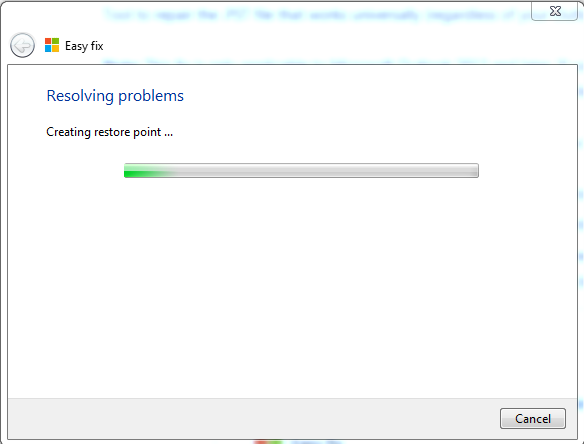
The scanning process starts to detect the problem in the Outlook PST file if any problem is detected it will automatically suggest the solution.
4 – After you get to Microsoft Outlook Inbox Repair Window, click on the Browse button to go to the drive where the PST file is stored.
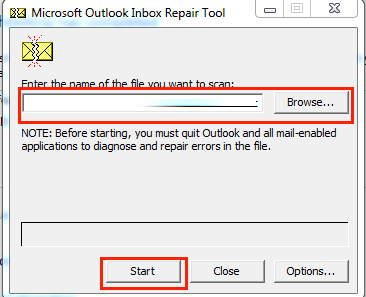
By default PST file is stored in C:\Users\ AppData\Local\MicrosoftOutlook.
5 – When the process is complete, start Outlook and see if the error is resolved.
But if the error is not resolved then move down to the second method.
B – Uninstalling third-party Anti-virus.
In many cases, it is seen that sometimes professional anti-virus hindrance MS Outlook and mail server connection. And in these cases, the error was resolved by uninstalling these overprotective anti-viruses. If you think that third-party suit is the reason behind error 0x80040119 then you can opt for this method.
To uninstall the anti-virus follow these below mention steps
1 – Press the Window key and R alphabet together to open the Run Dialog box >> type “appwiz.cpl” >> click on OK.
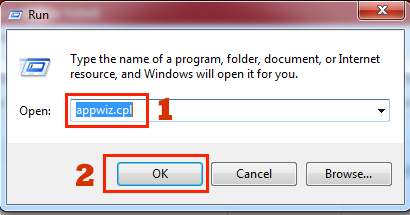
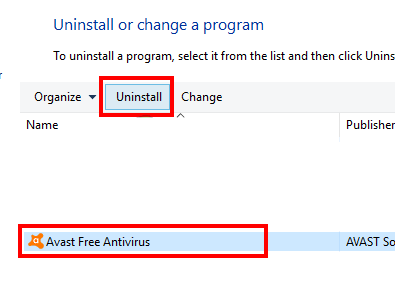
Scroll down throughout the list of install applications in the Program and Feature menu and find the Anti-virus which is producing the issue.
2 – Right Click on the Application after you find it then click on the uninstall option.
3 – Restart your system when the uninstallation process is complete.
4 – The next step is to delete remnant files of the uninstalled program that might still produce the stoppage. You can easily remove this file by downloading an anti-malware product removal tool from here
5 – Launch Outlook and repeat the action that generated the error previously and see if the error is resolved.
In case the error is not resolved then move on to the next method.
C – Reconfiguring (Repair) the account by account setting
As I mentioned above, sometimes the wrong configuration of any third-party email account in Outlook causes this 0x80040119 error. Many users have stated that they have fixed the error when they reconfigure their accounts in Outlook.
Steps to repair account of Outlook
1 – Open Outlook >> click on file option
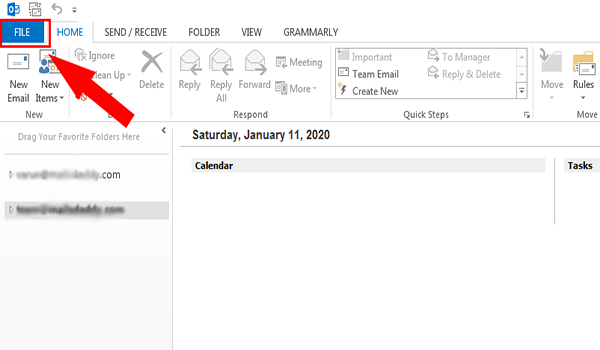
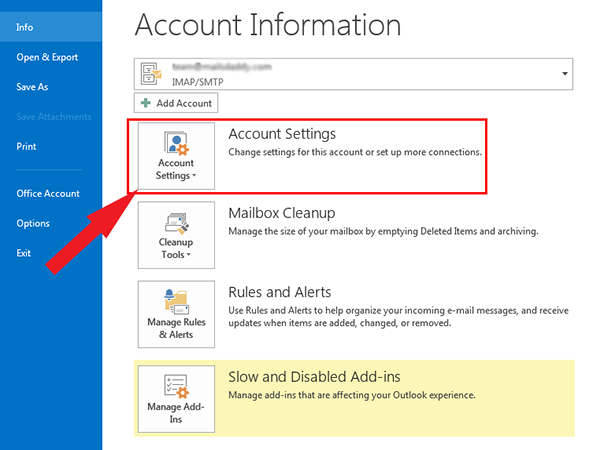
2 – A new window will open click on Account Setting on this window.
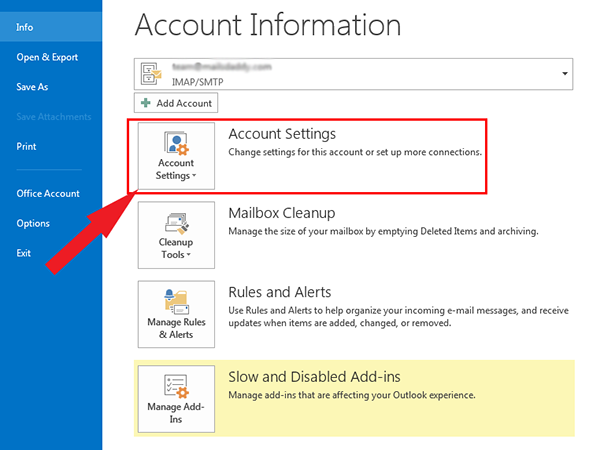
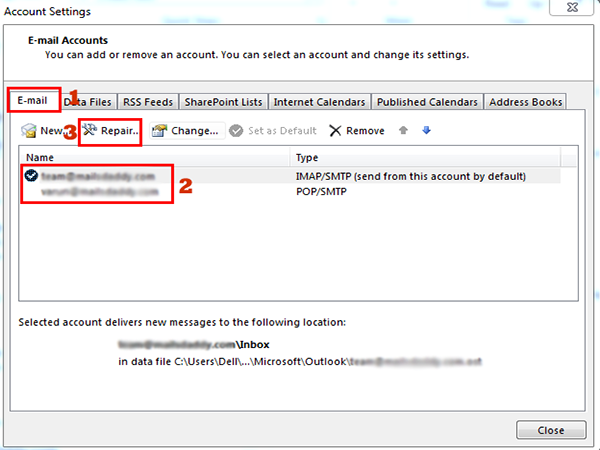
3 – Click on E-mails >> Select the Account which you want to repair. >> Click on Repair.
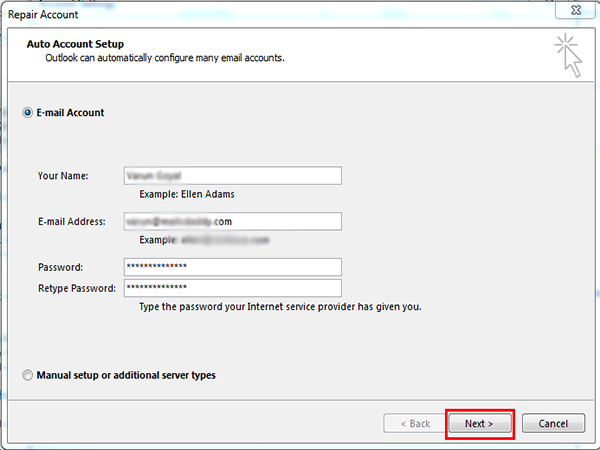
4 – A new box will open that shows information of the account selected >> click on next.
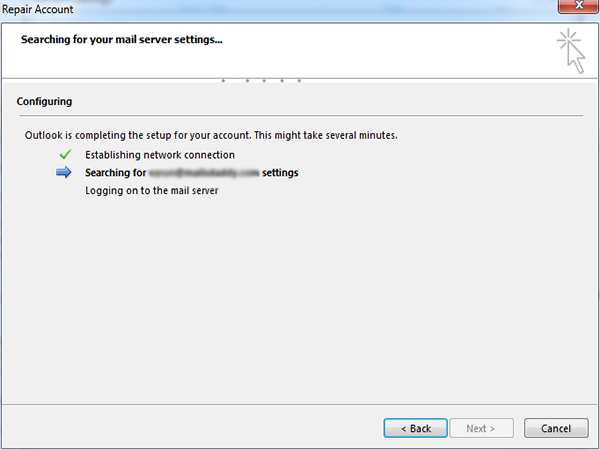
5 – Once you click on the next button the process of repairing the file starts.
6 – Hit the Finish Button after completion of the process.
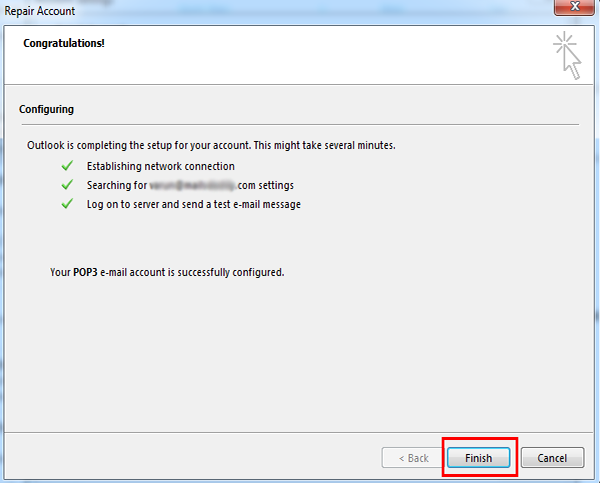
After that restart, your system and check if the issue is resolved.
These three are the simplest and safest solution for common causes of error 0x80040119. In most of cases, the issue will be solved after applying these solutions. But if the problem is not solved yet, then I will recommend you to consult the nearest Service Centre.
Conclusion
As you see there are many reasons behind the occurrence of unknown error 0x80040119. But the main is the enlarging of the .pst file. Corruption of the PST file is not avoided completely but it can be minimized. You will follow these precautions for safety – find some time to delete all old and unusable email files and messages. Regularly take back up of your Outlook mailbox file and always make sure that mail messages with large email attachments are managed properly.
If you have any doubts about Outlook, or any other Outlook error then feel free to contact us, we felt very happy to help you out.
Helpful Topics
How to import PST in Outlook?
The post [Solved] How to Fix Outlook unknown Error 0x80040119 easily for free appeared first on MailsSoftware.
]]>